
If you need to manage appointments in an online booking system, Book24Seven makes it simple. The Appointment Menu gives you full control over every booking — letting you add, edit, or delete appointments, track payments, and export your schedule in just a few clicks. Whether you run a salon, clinic, or any service-based business, this tool keeps your daily operations organized and stress-free.
Accessing the Appointments Menu in Book24Seven
- Log in to your Book24Seven Dashboard.
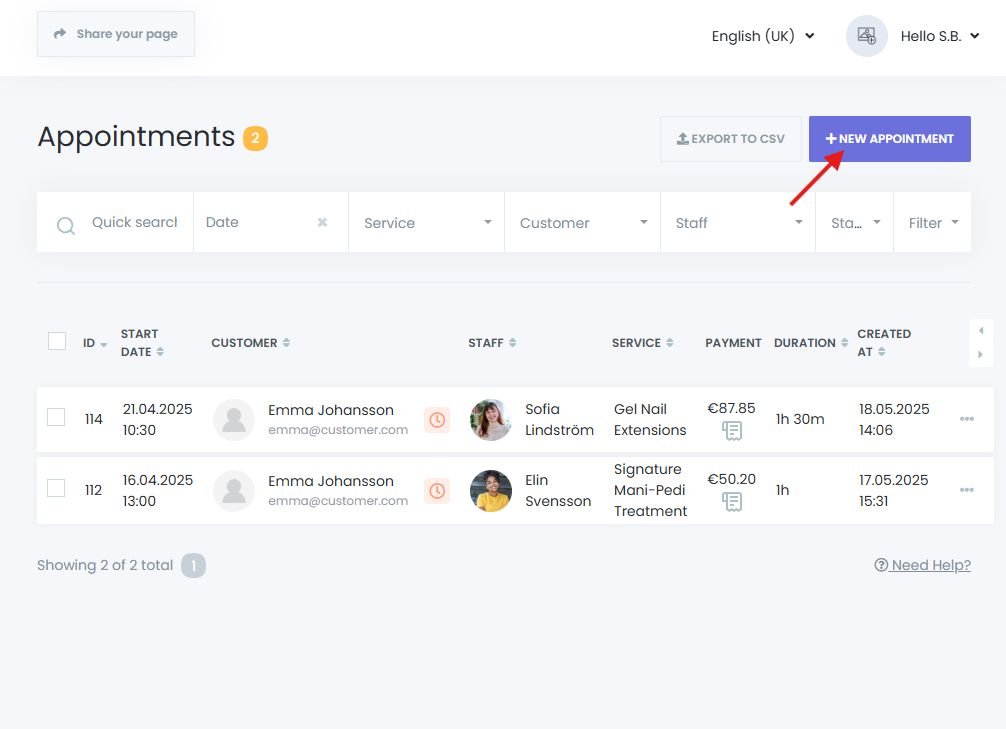
- Click Appointments from the sidebar to open the appointment management interface.
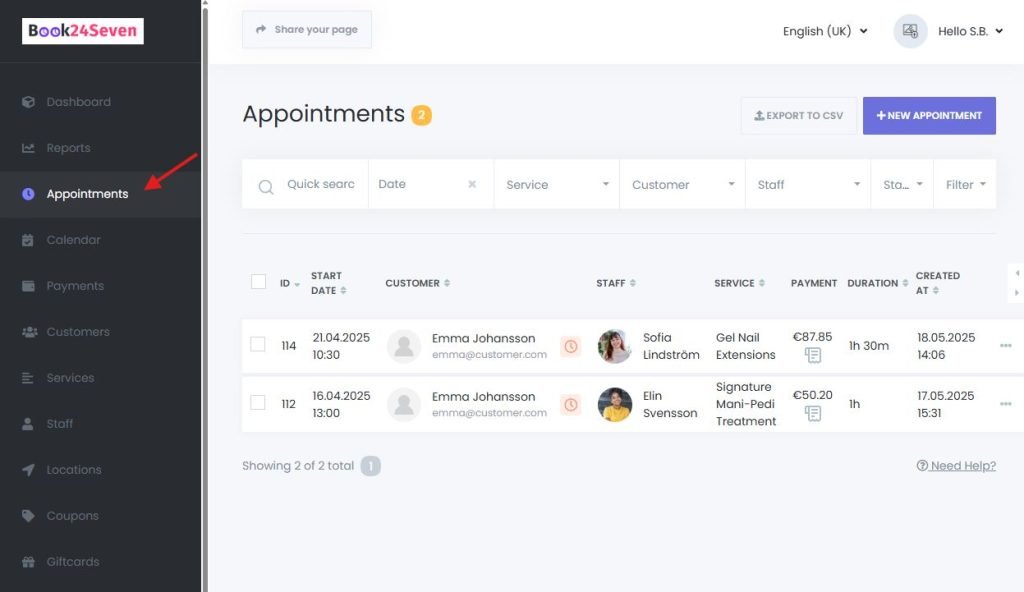
How to Manage Appointments in Book24Seven
Editing an Appointment
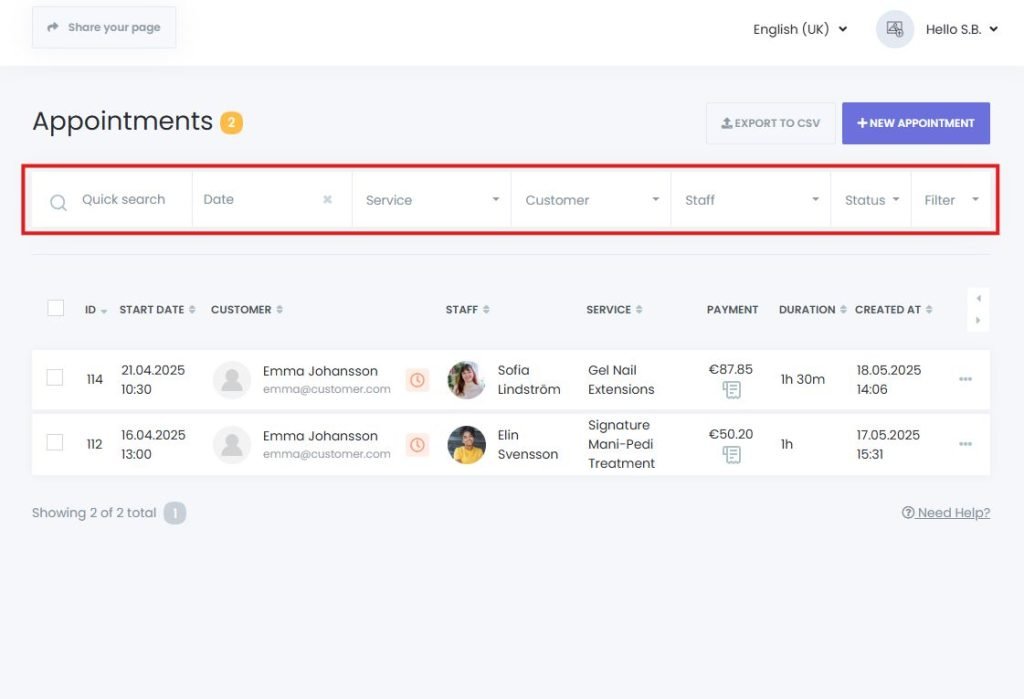
- Use the search bar or filter options to locate the appointment.
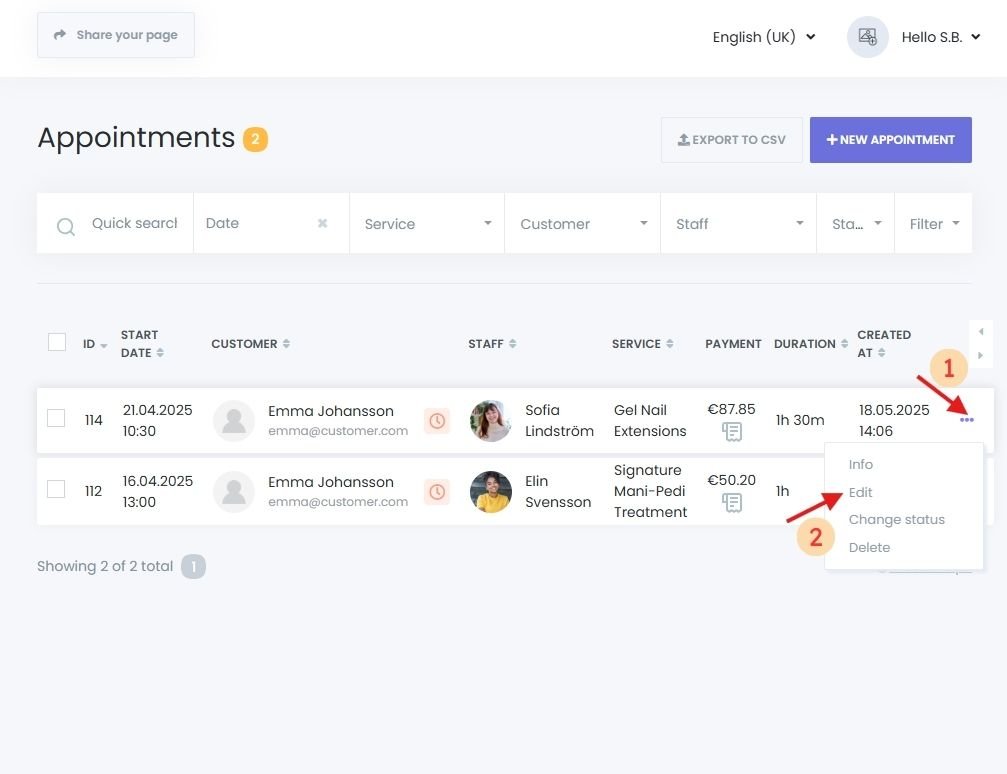
- Click the options icon (⋮) next to the appointment.
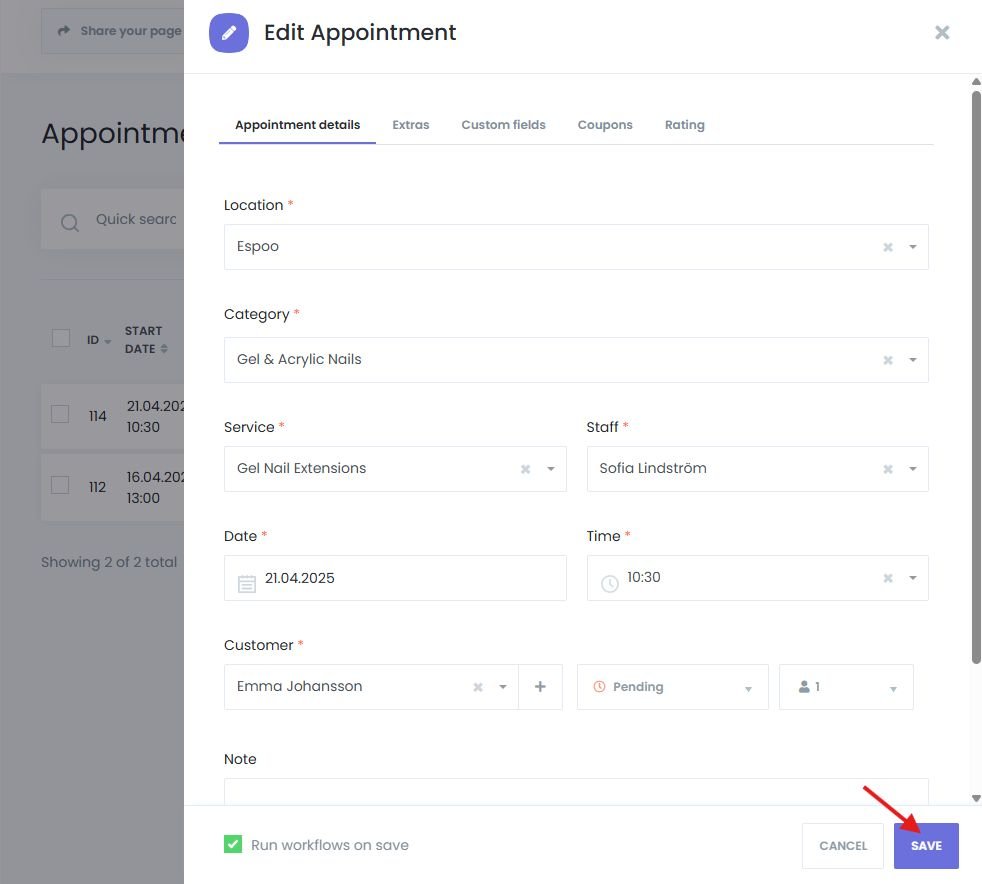
- Select “Edit” and update:
- Click Save to apply the changes.
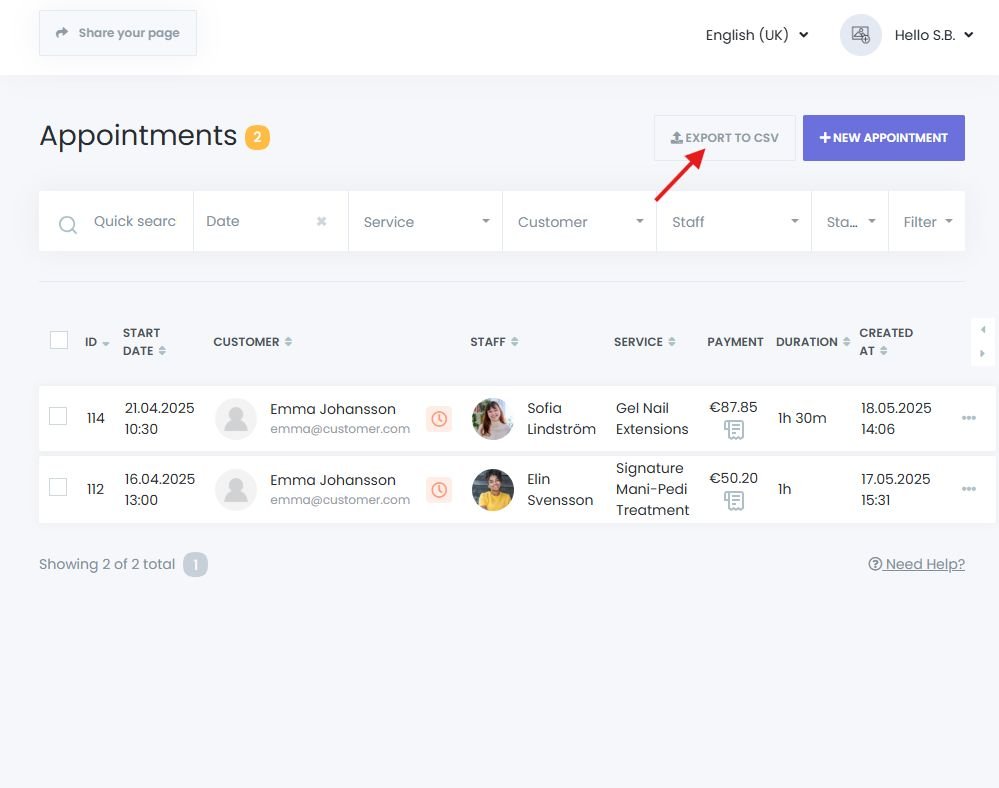
Exporting Appointments to CSV
- Click “Export to CSV” to download your appointment data.
- Ideal for backup, reporting, or external processing.
Deleting Appointments
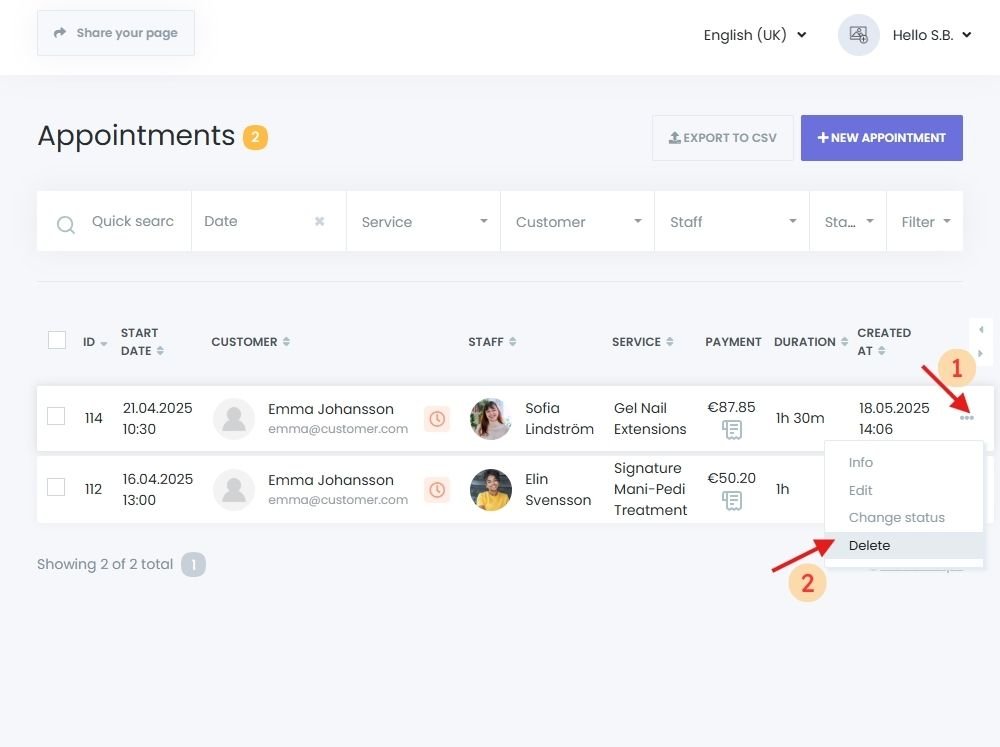
- Single Deletion: Click the options icon for an appointment, then select Delete.
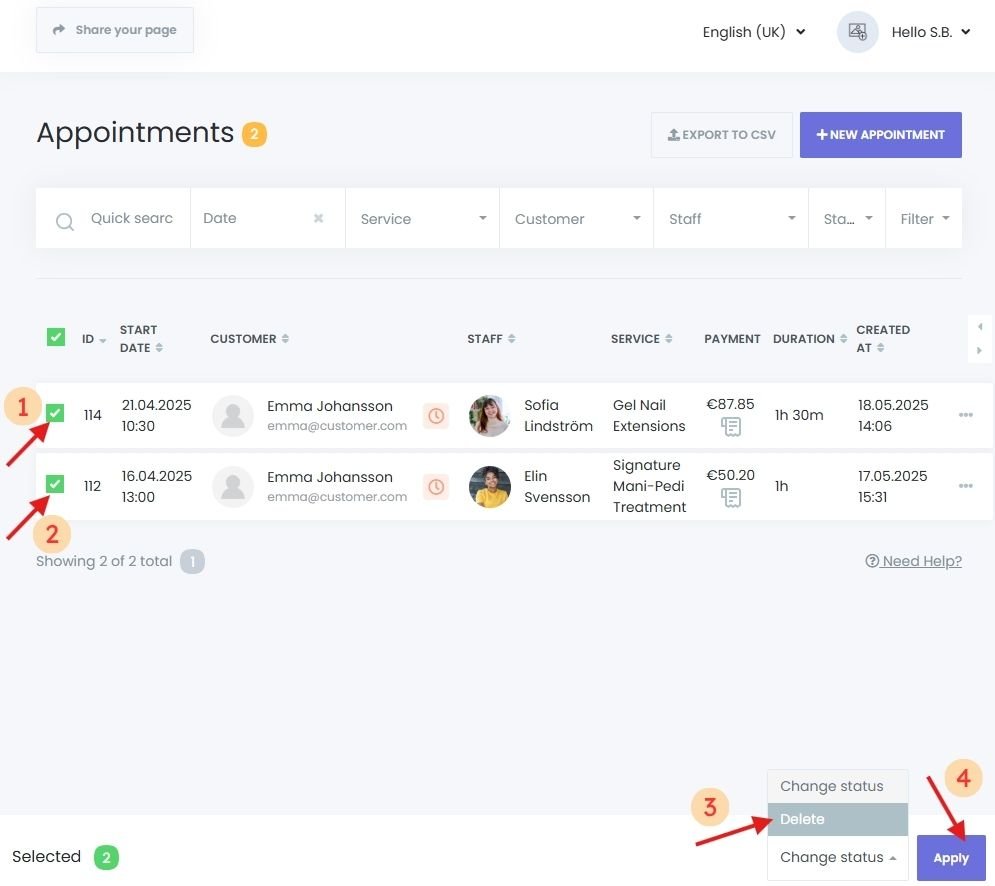
- Bulk Deletion:
- Use checkboxes to select multiple appointments.
- Click the Delete button at the bottom.
Viewing and Managing Payment Information
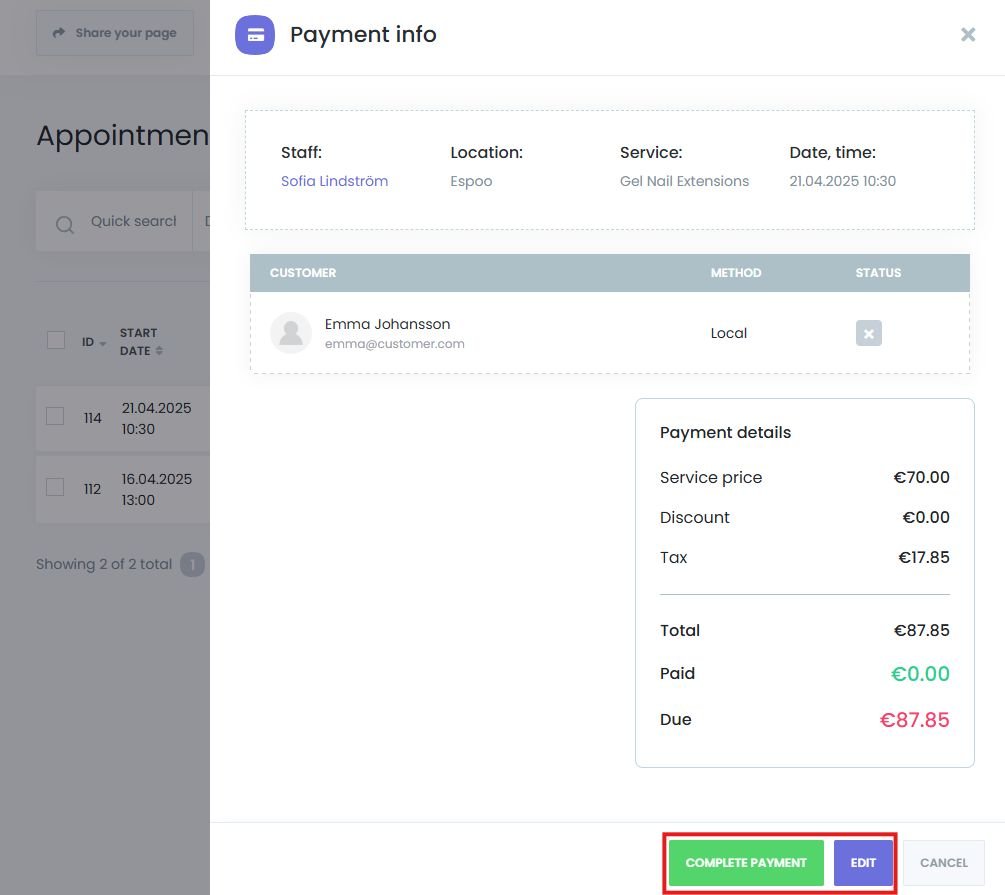
- In the Appointments table, locate the Payment column.
- Click the payment icon to:
- View transaction history
- Update or manage payment details
Creating a New Appointment Manually
Click the “New Appointment” button to open the booking form.
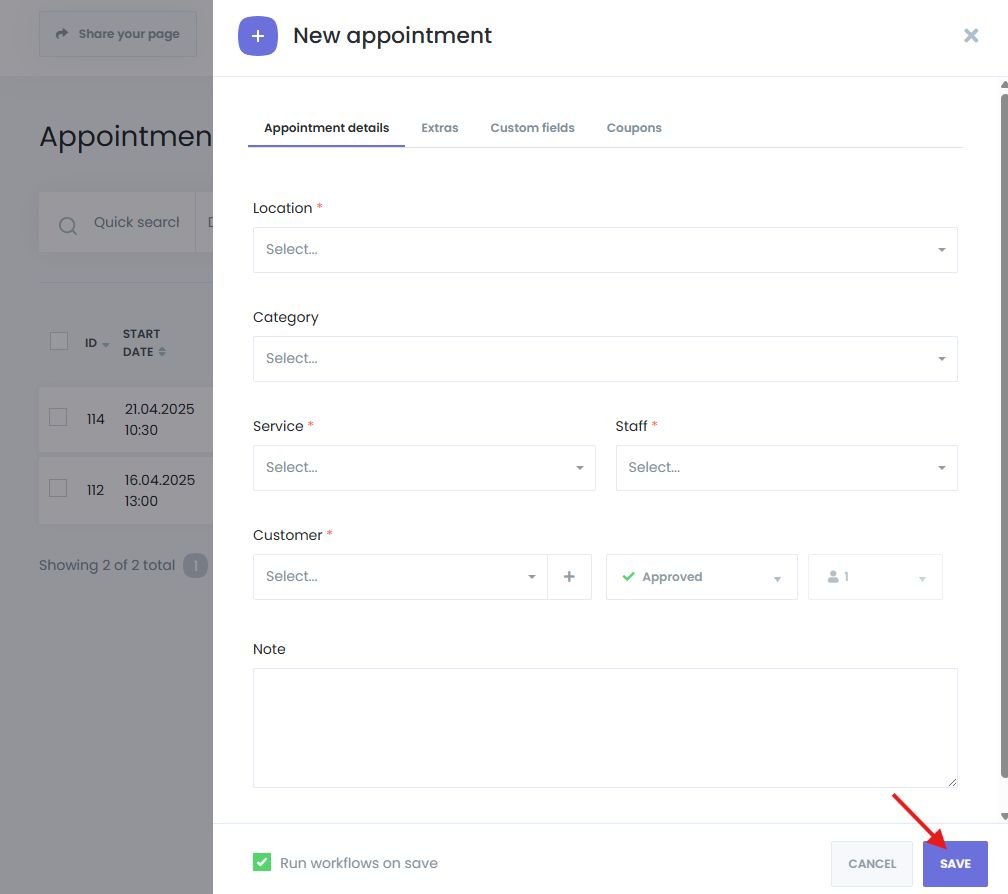
Fill Out the Appointment Details Tab
Fill out the required fields:
| Field | Description |
|---|---|
| Category | Choose the relevant category. |
| Service | Select the service (regular or recurring). |
| Staff Member | Assign a staff member based on service availability. |
| Date and Time | Choose a time slot. For recurring services, define recurrence pattern. |
| Customer Info | Choose an existing customer or add a new one. |
| Appointment Status | Select from standard or custom statuses (*). |
| Notes | Add internal notes for this appointment. |
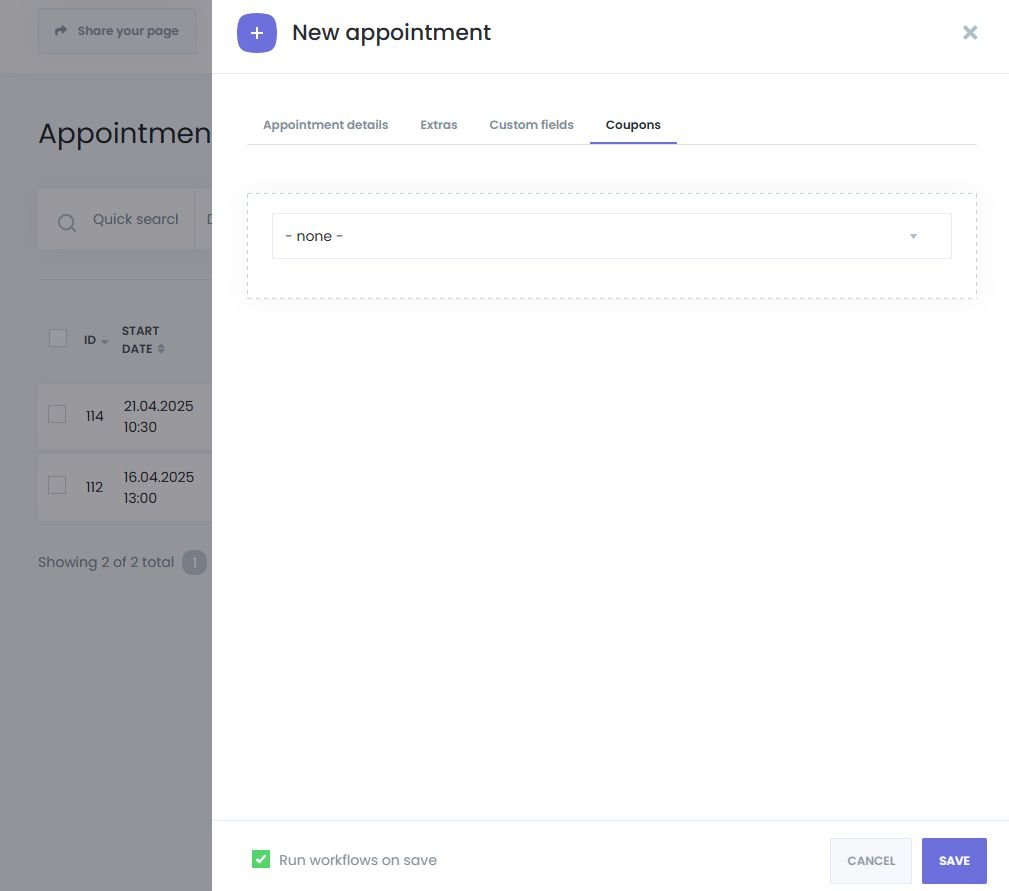
Add Optional Extras, Forms, or Coupons
| Option | Description |
|---|---|
| Extras | Add optional services or upgrades. |
| Custom Forms* | Collect custom data during booking. |
| Coupons* | Apply a discount code to the booking. |
Enable Notifications and Save the Appointment
- Enable “Run workflows on save” to:
- Send booking confirmations
- Trigger any workflow you’ve configured (e.g., payment reminders, admin, staff alerts)
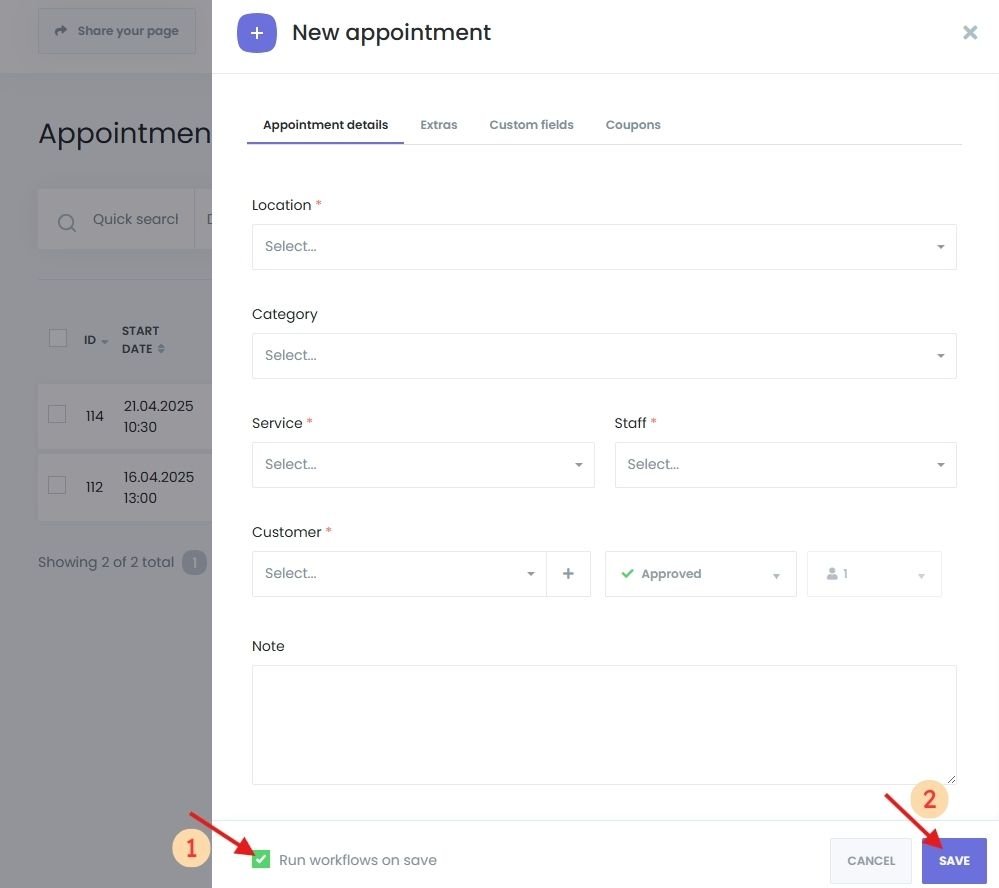
Once all details are complete, click “Save” to confirm the booking.
Advanced Appointment Features
Some of the following features may require higher subscription plan (available via the Book24Seven billing->upgrade plans):
| Feature | What it does |
|---|---|
| Custom Forms | Create custom booking forms for more flexible data collection. |
| Coupons | Apply promo codes to incentivize bookings. |
| Products (coming soon) | Sell physical or digital items alongside services. |
| Custom Appointment Statuses (coming soon) | Create and manage custom statuses beyond the default ones. |
Tip: These features enhance customization and can improve both customer experience and internal operations.
Summary
The Appointments Menu in Book24Seven gives you complete control to manage appointments in an online booking system — all from one place. You can:
- View, edit, or delete existing bookings
- Export appointment data for analysis or reports
- Create manual bookings with full details
- Track and update payment records
- Automate confirmations and reminders with workflows
By mastering this feature, you’ll streamline your daily operations, reduce scheduling errors, and keep both your team and customers perfectly coordinated.

 English
  Finnish