
If you need to adjust the general settings in an online booking system, Book24Seven gives you full control over how bookings work. From setting time slot lengths and date formats to controlling default appointment statuses and customer access, these settings help you customize the system to fit your business needs.
Accessing General Settings in Book24Seven
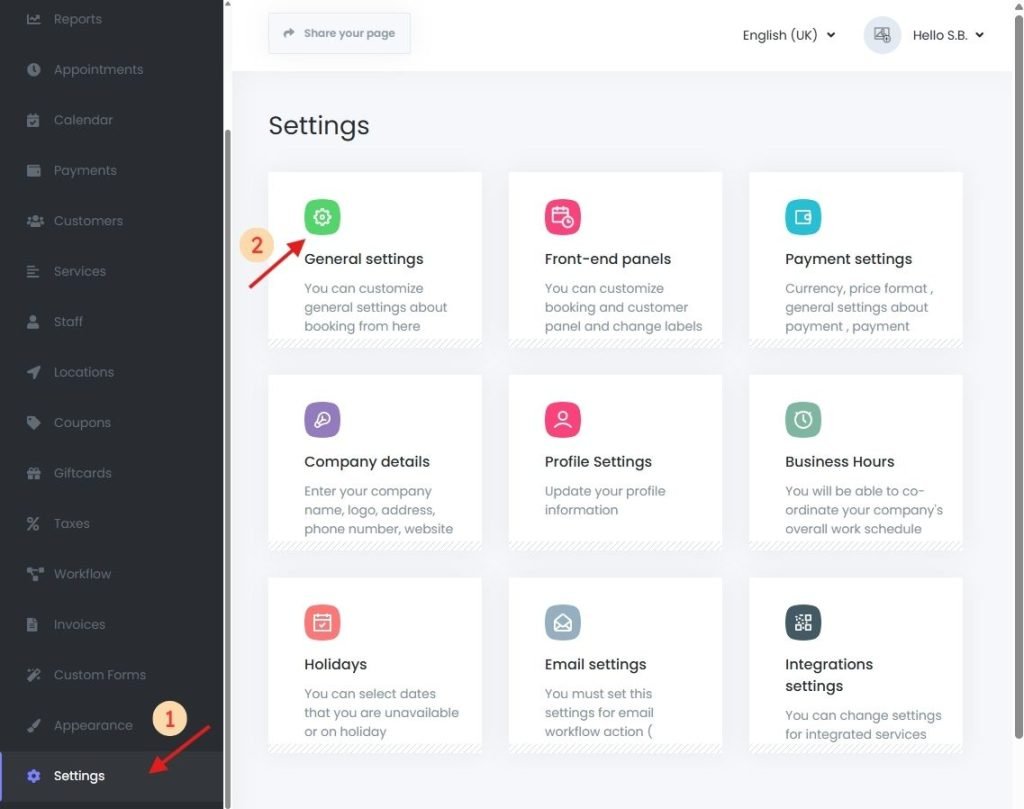
- Log into your Book24Seven dashboard.
- From the sidebar, click on Settings.
- Select “General Settings” from the settings interface.
Appointment Time Settings
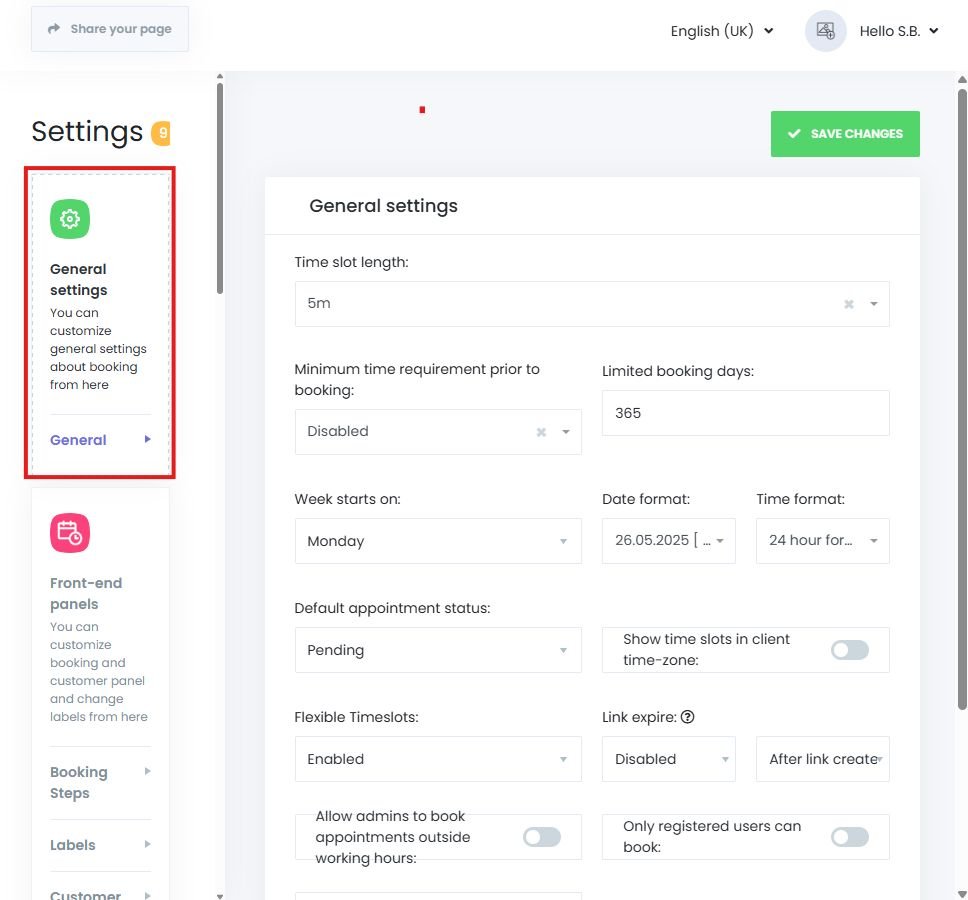
Time Slot Length
This setting controls the intervals customers see when booking an appointment.
Example:
If set to 30 minutes, available slots will appear as:
10:00 AM, 10:30 AM, 11:00 AM, etc.
- Default value: 5 minutes
- This setting can be overridden by the “Set slot length as service duration” option.
Set Slot Length as Service Duration
When enabled, this option overrides the default slot length.
The calendar intervals match the duration of the service.
Example:
If a service duration is 1 hour, customers will see:
10:00 AM, 11:00 AM, 12:00 PM, etc.
- Default: Disabled
Minimum Time Requirement Prior to Booking
Prevents last-minute bookings by requiring a minimum lead time.
Example:
Set to “1 day” → Customers cannot book same-day appointments.
- Use Case: Ideal for businesses that need prep time between bookings.
- Default: Disabled
Limited Booking Days
Sets how far in advance a customer can book.
Example:
Set to “90 days” → Customers cannot book more than 3 months ahead.
- Default: 365 days
Date and Time Display Options
Week Starts On
Choose which day the calendar week begins:
- Common options: Monday or Sunday
- Useful for aligning with regional or cultural expectations
Date Format
Customize how dates appear based on regional formats:
- Options include DD/MM/YYYY, MM/DD/YYYY, etc.
Time Format
Choose between 12-hour (AM/PM) or 24-hour (military) time display.
- Match your display format with your customer base preferences.
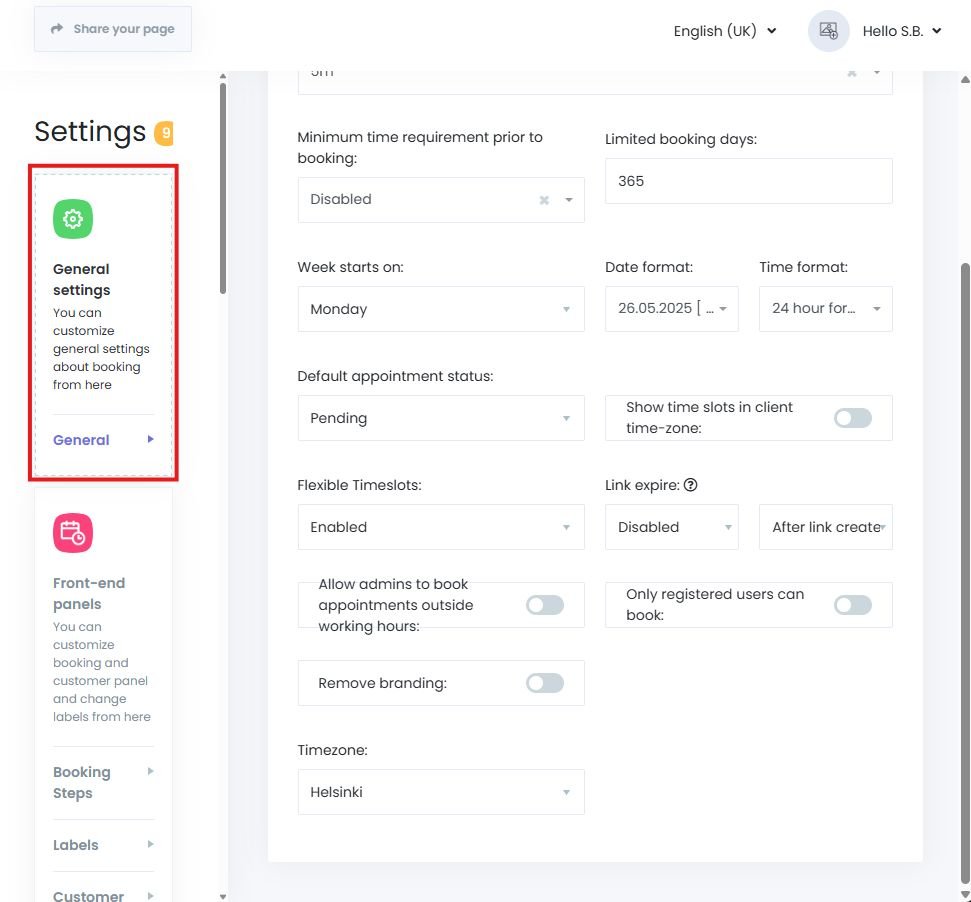
Timezone
Make sure your system uses the correct timezone for all bookings.
If timezone is not set, appointments may appear at incorrect times or fail to book.
Booking Rules and Restrictions
Default Appointment Status
Set the default status of a new booking:
- Approved – Appointments are auto-confirmed upon booking.
- Pending – Requires manual approval by admin or staff.
- Default: Approved
Use “Pending” if you want tighter control over booking confirmations.
Show Timeslots in Client Timezone
When enabled, customers will see time slots converted to their local timezone.
- Recommended for businesses offering online or global services.
- Ensures international clients see your availability accurately.
Allow Admins to Book Outside Working Hours
This feature allows manual appointments by admins even outside standard business hours.
- Use case: Urgent internal bookings or exceptions
Only Registered Users Can Book
When enabled:
- Visitors must log in to book an appointment.
- If not logged in, they will be redirected to the login page.
Remove Branding
Enable this option to remove “Powered by Book24Seven” from the booking panel.
- Provides a more white-labeled experience for your customers.
Summary
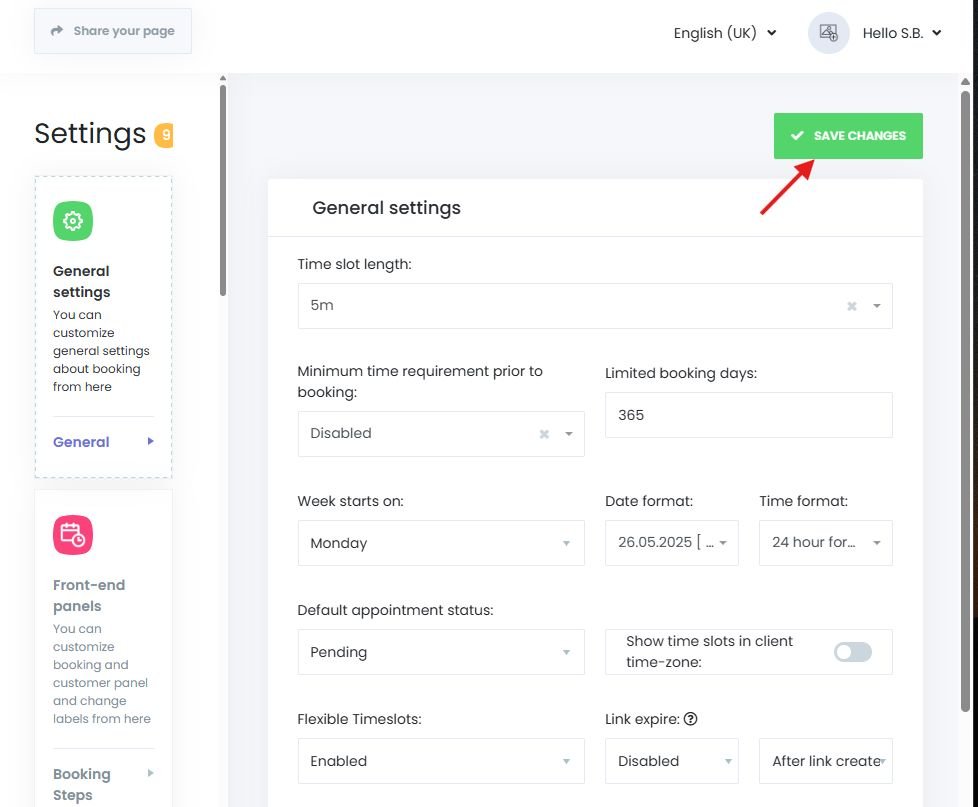
The General Settings panel in Book24Seven gives you full control over how your online booking system operates. With these options, you can:
- Define your booking calendar structure and slot intervals
- Customize the customer and staff experience
- Control booking permissions and time-based rules
- Enable timezone conversion for global users
- Remove branding for a professional look
These general settings in an online booking system form the foundation of your appointment process, so configure them carefully based on your business model.

 English
  Finnish