
If you want to manage coupons and discounts in an online booking system, Book24Seven makes it simple. The Coupons Module lets you create custom promo codes, set discount types, and apply them to specific services, staff, or locations. Whether you’re offering a limited-time sale, a referral reward, or loyalty incentives, Book24Seven helps you attract new clients and keep existing ones coming back — all while tracking coupon usage directly from your dashboard.
Accessing the Coupon Management Module
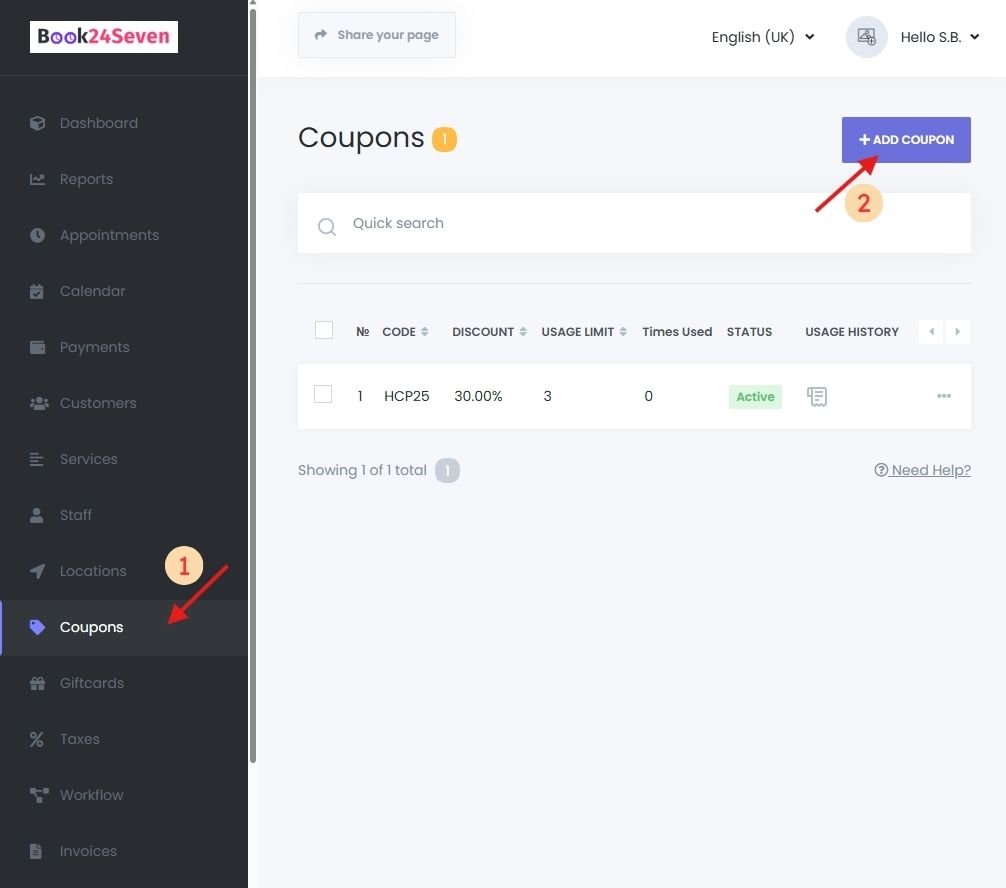
- Log in to your Book24Seven dashboard.
- Click on the Coupons tab from the sidebar.
How to Create a New Coupon in Book24Seven
Step 1: Add a New Coupon
- Click the “ADD COUPON” button to open the coupon creation form.
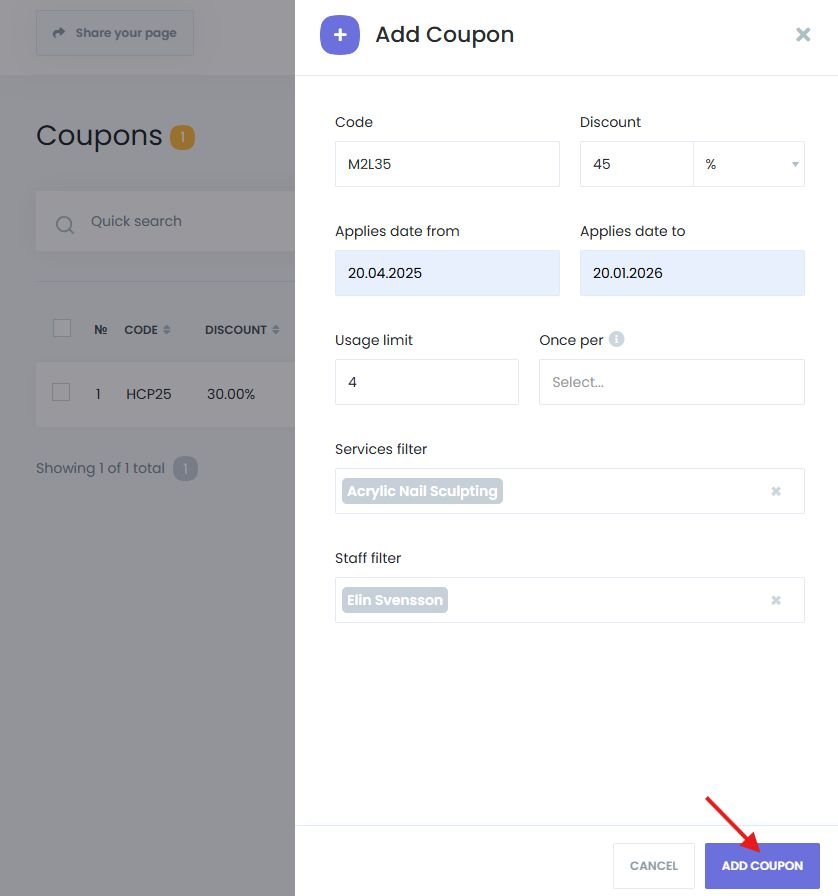
Step 2: Configure Coupon Details
| Field | Description |
|---|---|
| Code | Unique code entered by the customer during booking (e.g., SAVE20) |
| Discount | Choose Percentage (%) or Fixed Amount (e.g., $25 off) |
| Applies Date From | Set the start date for coupon validity |
| Applies Date To | Set the expiration date (optional) |
| Usage Limit | Max number of total redemptions (leave blank for unlimited) |
| Once per Customer/Booking | Restrict to a single use per customer or per appointment |
| Services Filter | Apply to specific services only |
| Staff Filter | Apply to specific staff members only |
Step 3: Save and Activate the Coupon
- Click “ADD COUPON” to save and activate the coupon.
Managing Existing Coupons
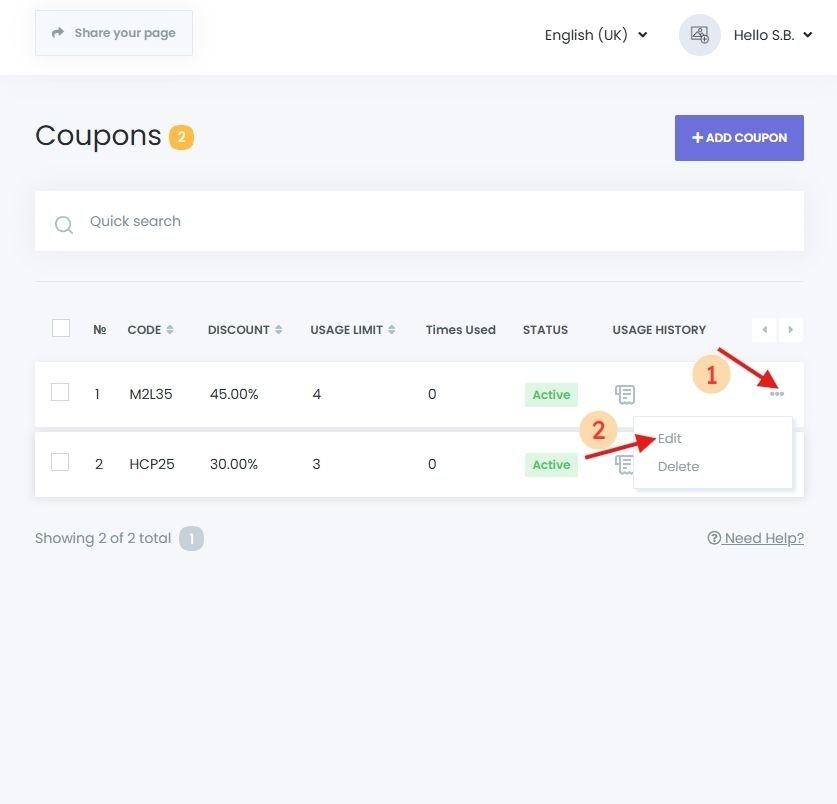
Edit Coupon Details
- In the coupons list, click the three-dot icon beside the coupon.
- Choose “Edit”, make changes, then click “Save.”
Delete Unused Coupons
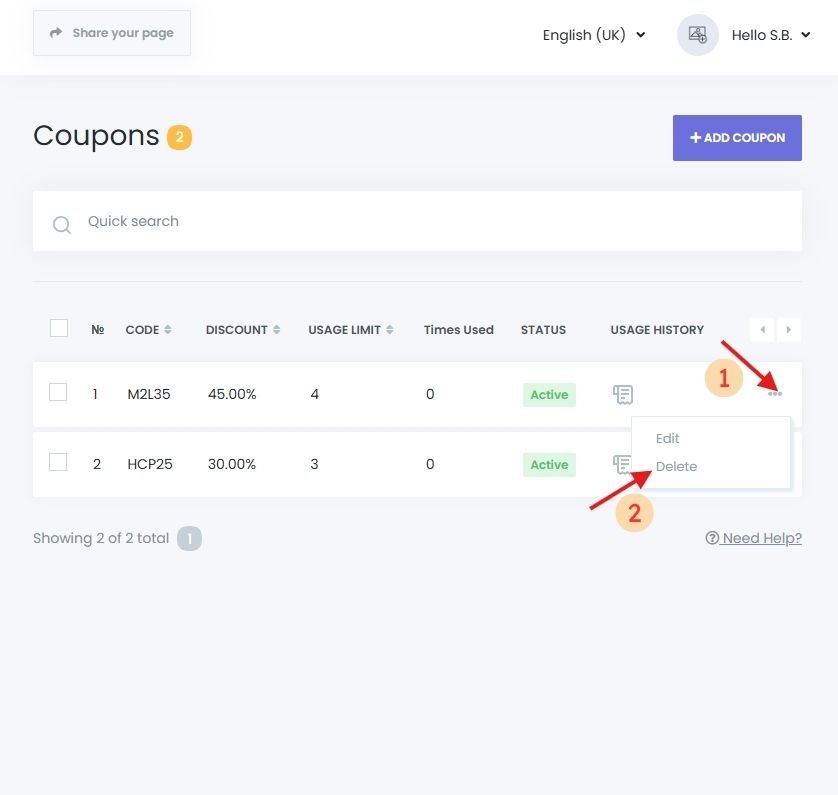
- Single Delete: Click the three-dot icon → Delete → Confirm.
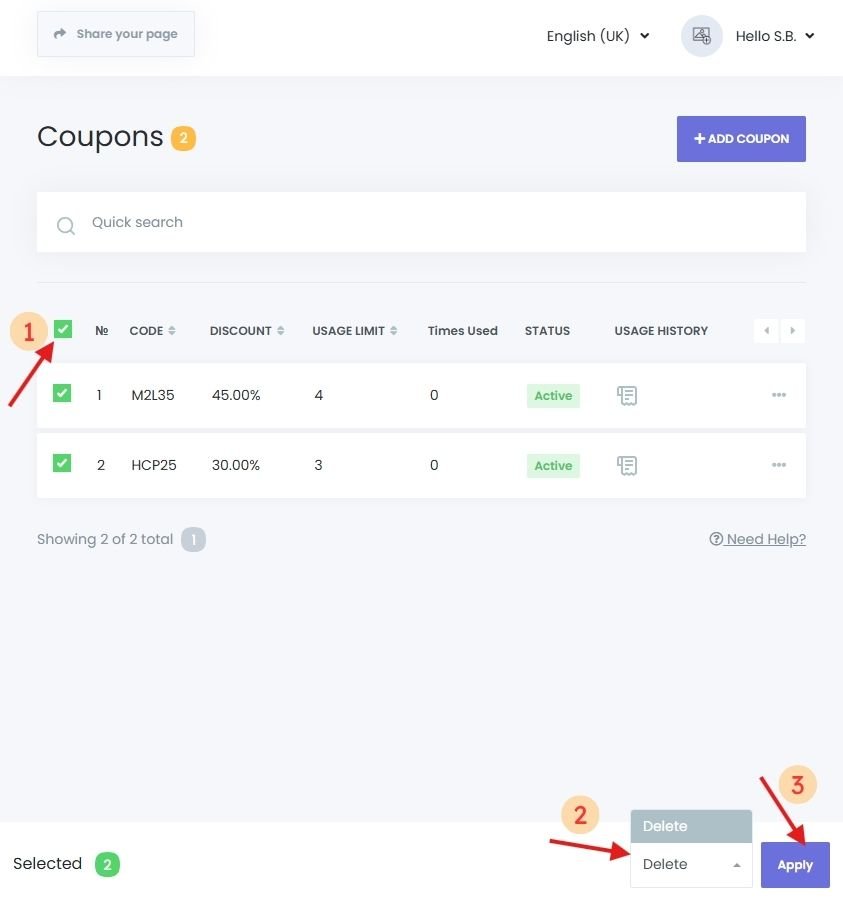
- Bulk Delete: Select multiple coupons using checkboxes, choose Delete from the action dropdown, and click Apply.
View Coupon Usage History
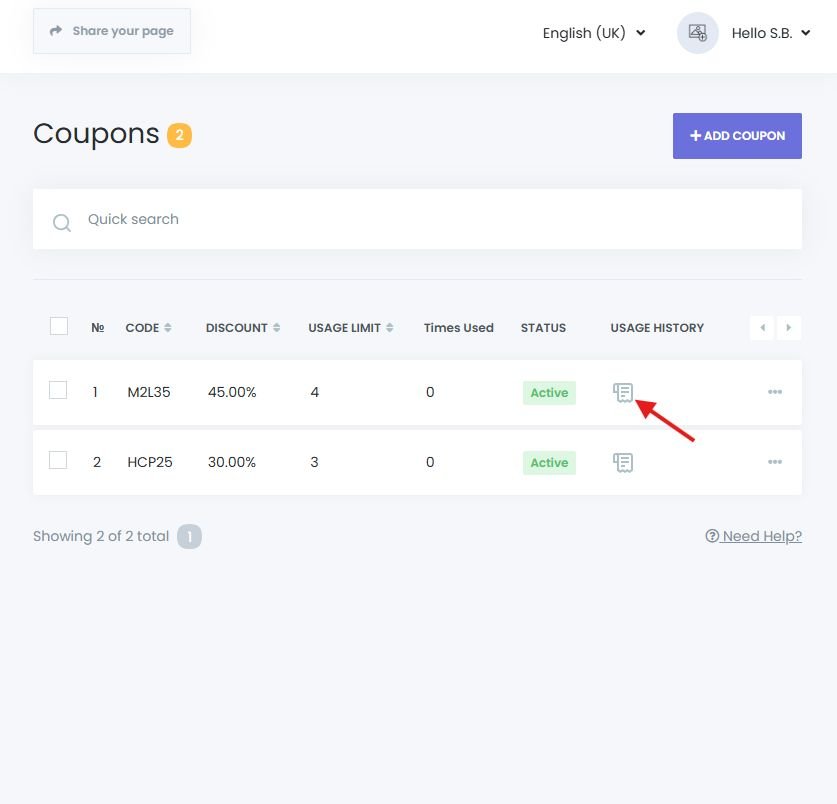
- Click the cheque icon next to a coupon.
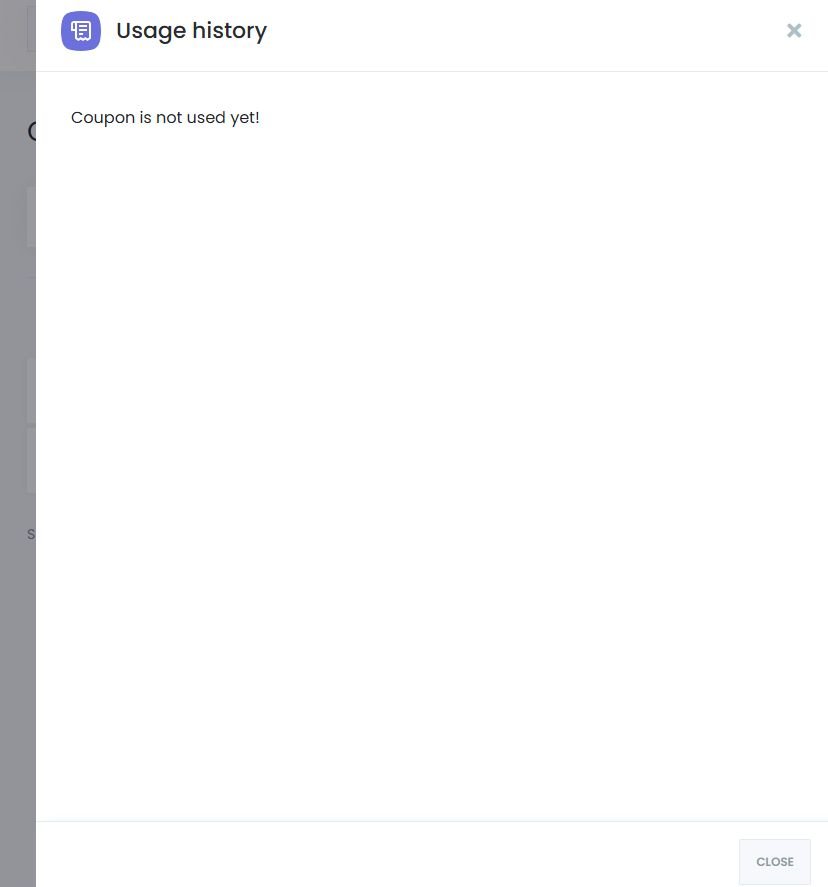
- A detailed log will appear showing:
- Which appointments used the coupon
- Customer names
- Appointment dates and times
Applying Coupons During Appointments
From the Admin Panel (Manual Bookings)
- Go to the Appointments menu or Calendar module.
- Click “New Appointment”.
- Fill out required fields in the Appointment Details tab.
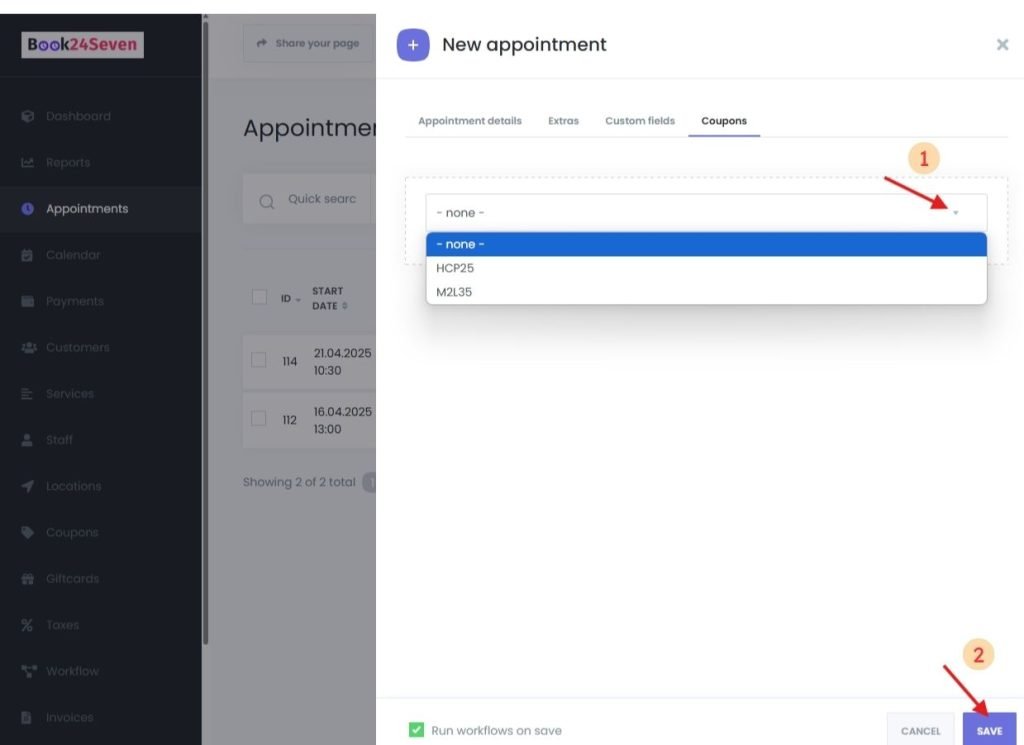
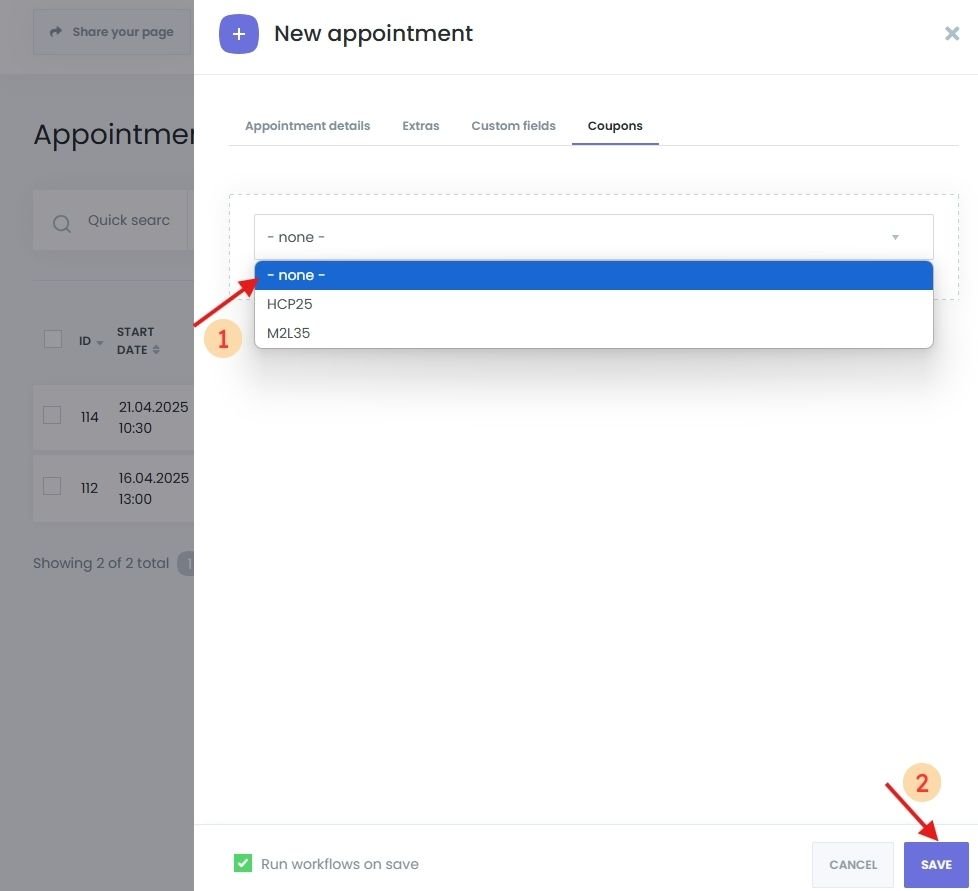
- Switch to the Coupons tab and select the desired coupon.
- Click Save.
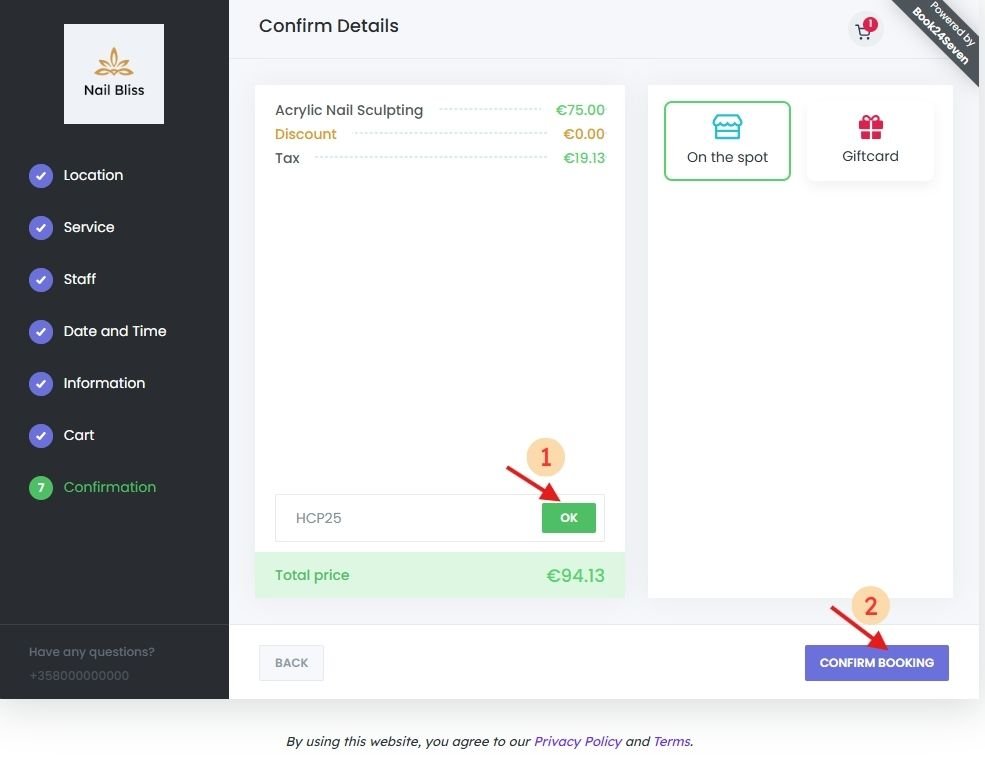
From the Customer Booking Panel
- Customers proceed through the booking steps until the Confirmation step.
- They enter the coupon code in the “Coupon Code” field.
- Click “OK” to apply the discount.
Removing a Coupon from an Appointment
To remove a coupon from an existing booking:
- Go to the Appointments menu or Calendar module.
- Locate and edit the appointment.
- Navigate to the Coupons tab.
- Select “- none -” from the dropdown.
- Save the changes.
Summary
Book24Seven’s Coupons Module helps you manage coupons and discounts in your online booking system with ease. You can:
- Create flexible, custom discount codes for your customers
- Limit coupons by service, staff, or specific usage rules
- Track coupon history for accurate reporting and performance insights
- Apply coupons manually or let customers redeem them during online booking
Whether you’re running a seasonal offer, promoting new services, or rewarding loyal clients, the Coupons Module gives you a smart, automated way to attract customers and increase bookings.

 English
  Finnish