
If you need to manage appointments in an online booking system, the Calendar Module in Book24Seven gives you a complete overview of your schedule. You can view daily, weekly, and monthly bookings, filter by staff, service, or location, and even sync your calendar with Google for real-time updates. It’s designed to make appointment tracking simple, visual, and efficient.
Accessing the Calendar Module in Book24Seven
To open the calendar:
- Log into your WordPress admin.
- Navigate to Book24Seven > Calendar from the sidebar.
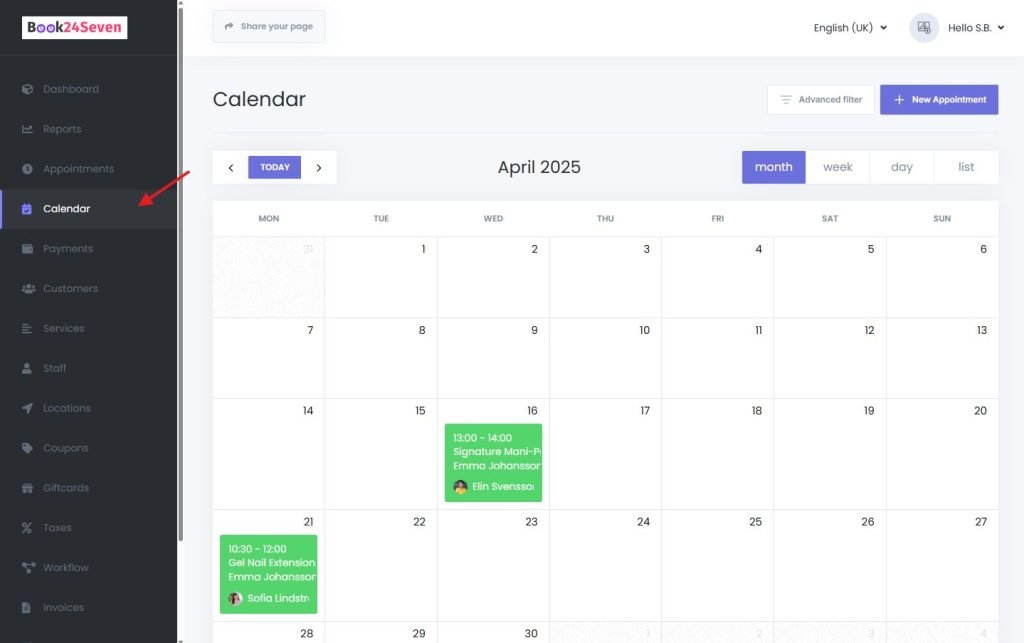
Understanding the Calendar Interface
The Calendar Module displays all scheduled appointments and offers:
- Quick access to create, edit, or delete appointments
- Filtering by location, staff, or service
- Real-time Google Calendar
Calendar Viewing Modes Explained
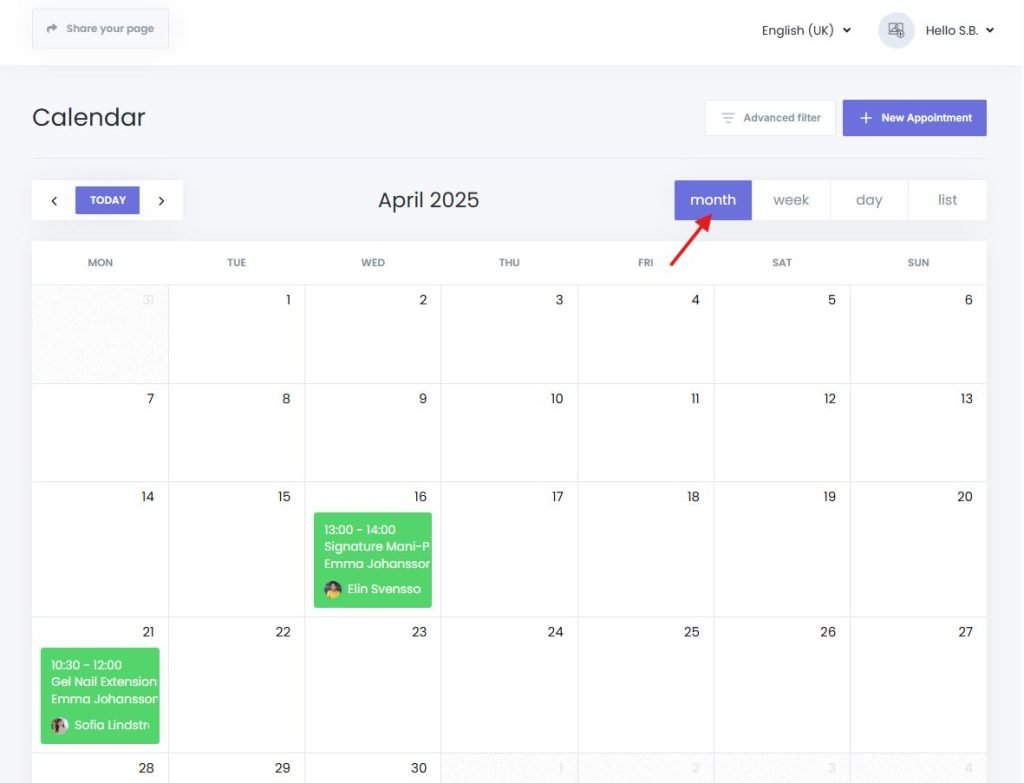
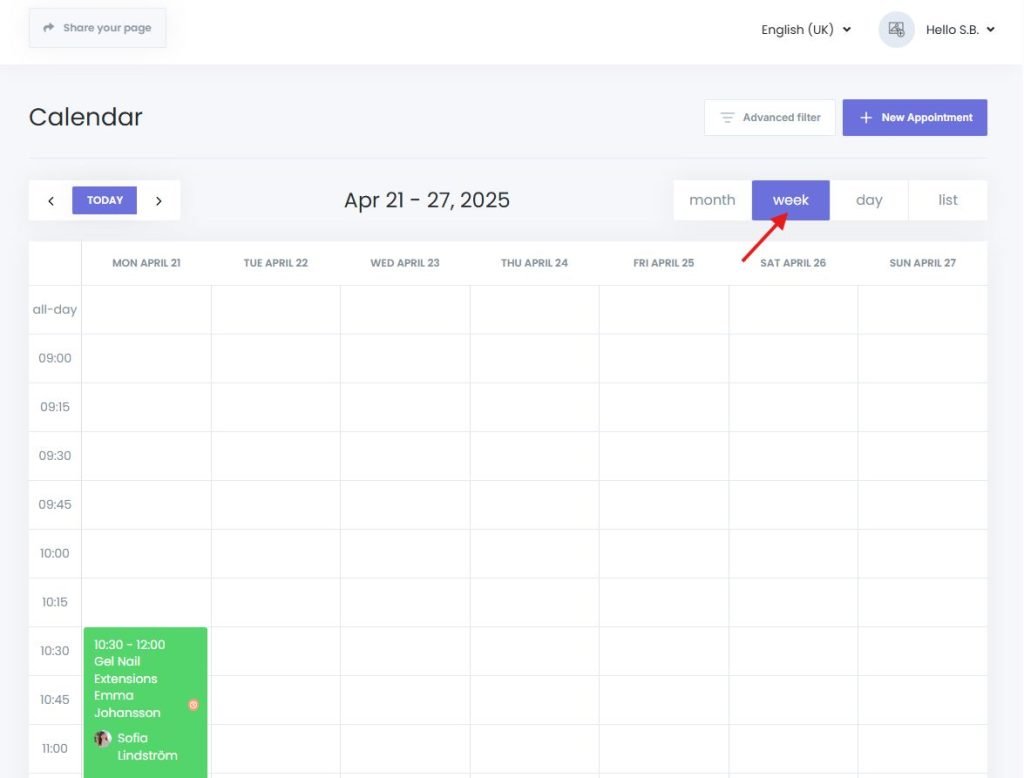
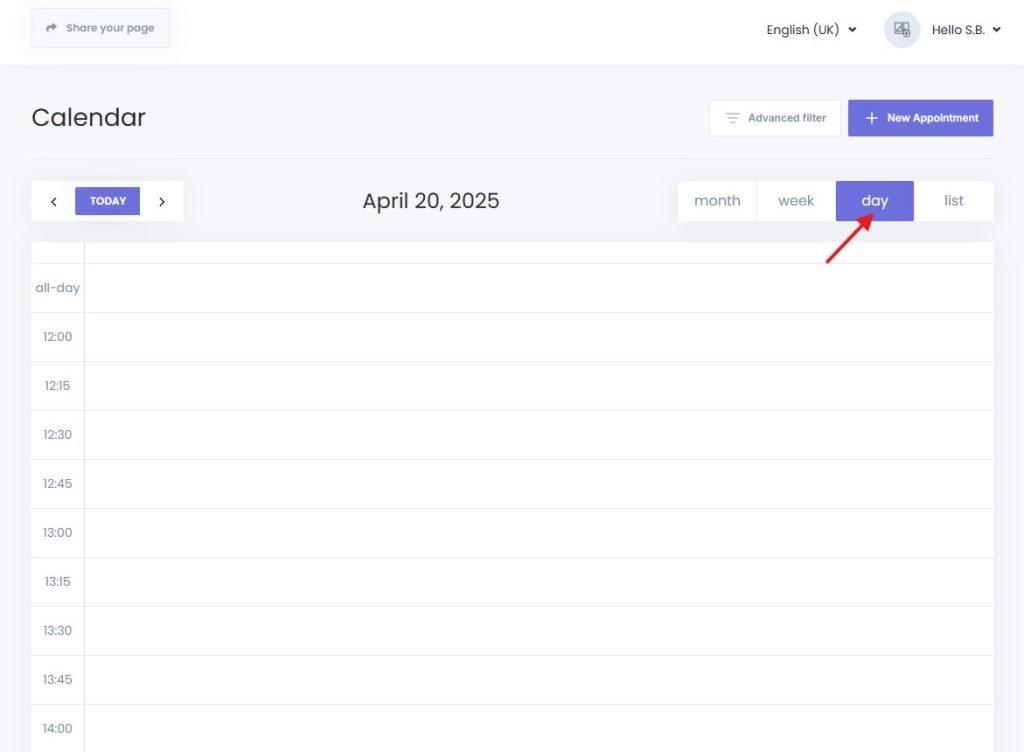
Book24Seven offers four distinct calendar views to match your preferred scheduling style:
| View | Description |
|---|---|
| Monthly View | Overview of all appointments in a month |
| Weekly View | A week-by-week breakdown of bookings |
| Daily View | Detailed timeline of a specific day, including staff columns |
| List View | Compact list format, ideal for quick scanning |
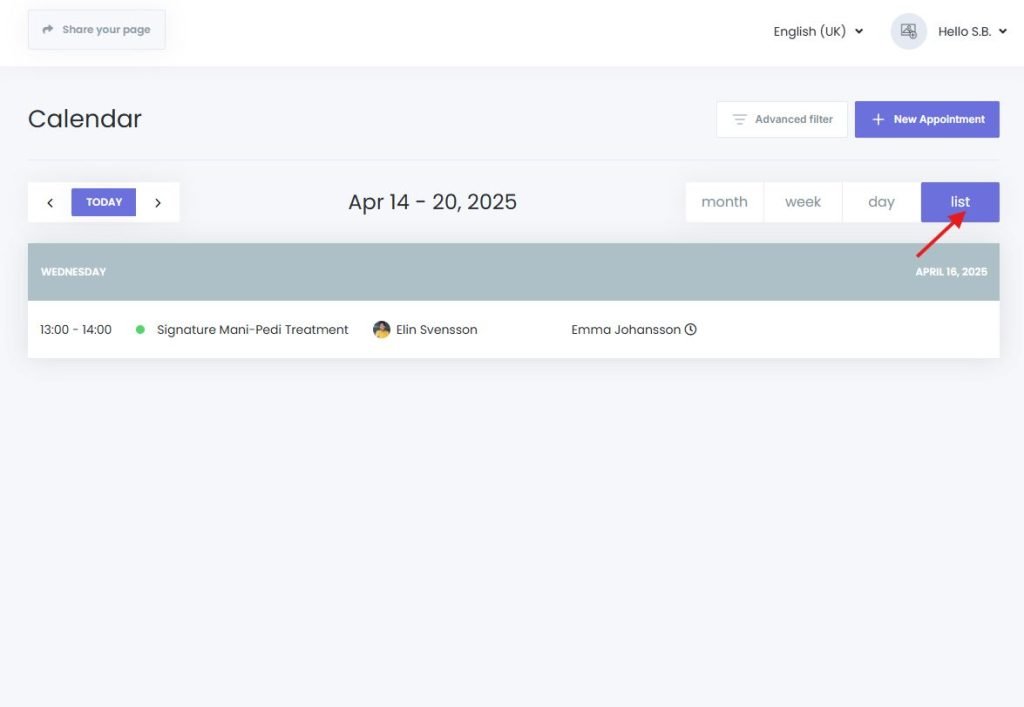
Managing Appointments in the Calendar Module
Adding a New Appointment
- Click on any date or time slot in the calendar.
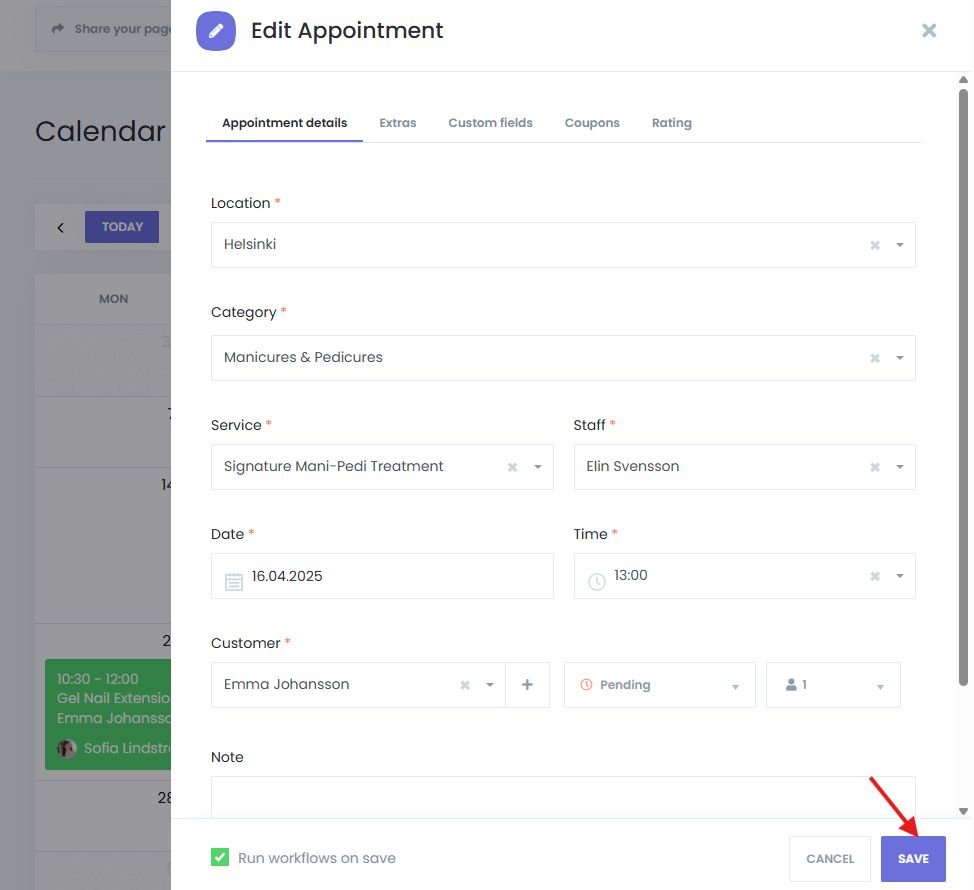
- Fill out the appointment form with:
- Location
- Category
- Service
- Staff
- Date & Time
- Customer
- Enable “Run workflows on save” to trigger confirmation or reminder workflows (optional).
- Click Save to confirm.
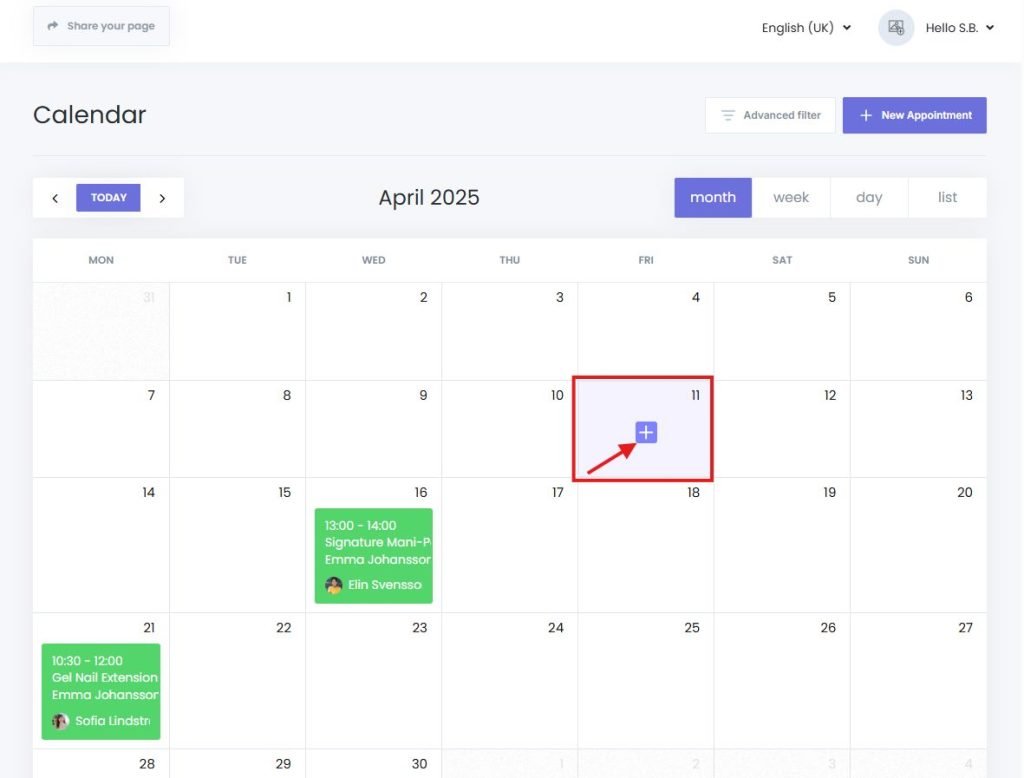
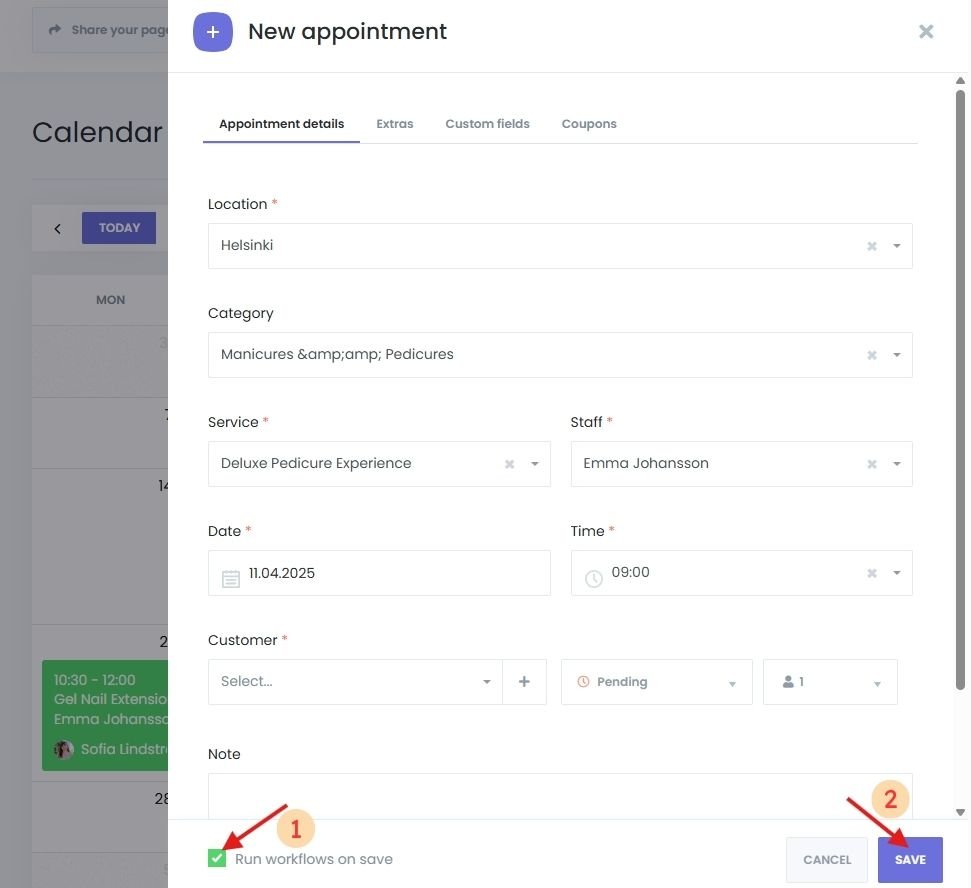
Editing an Appointment
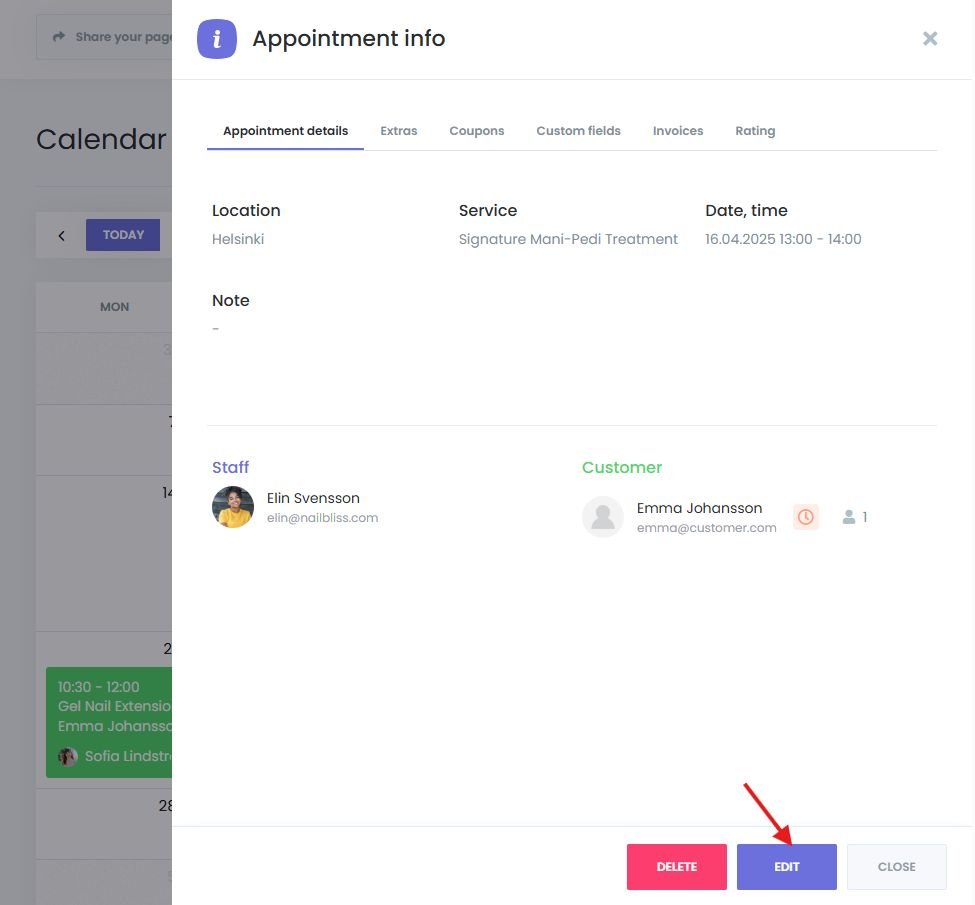
- Click an existing appointment on the calendar.
- Select Edit, then change any field (e.g., staff, service, time).
- Click Update to save.
If “Run workflows on save” is active, the system may send email or SMS updates automatically based on your workflow setup.
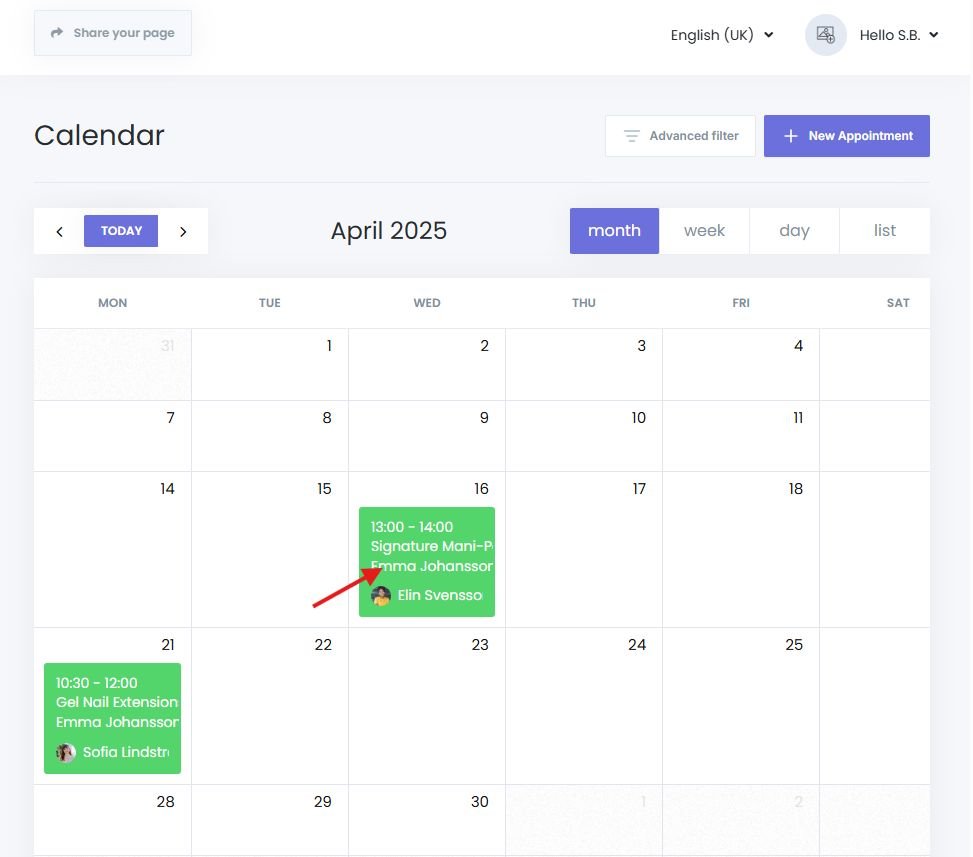
Deleting an Appointment
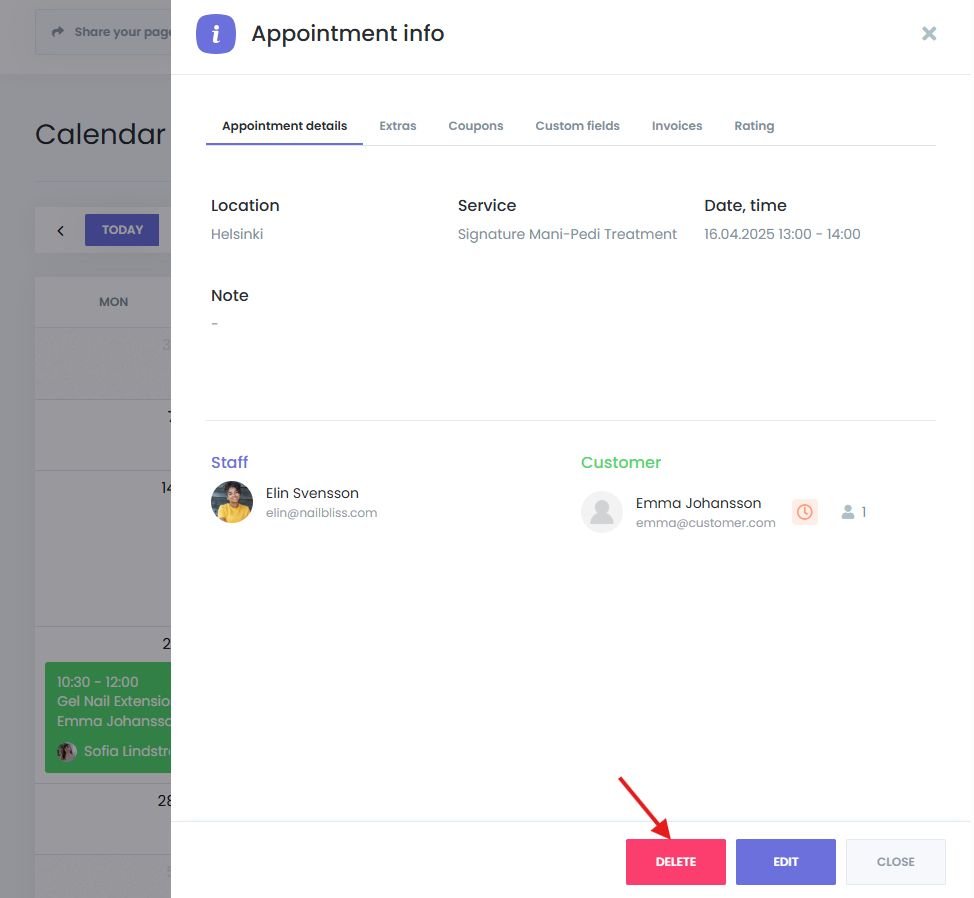
- Click the appointment to open it.
- Choose Delete.
- Confirm the deletion — the appointment is permanently removed.
Filtering and Searching Appointments
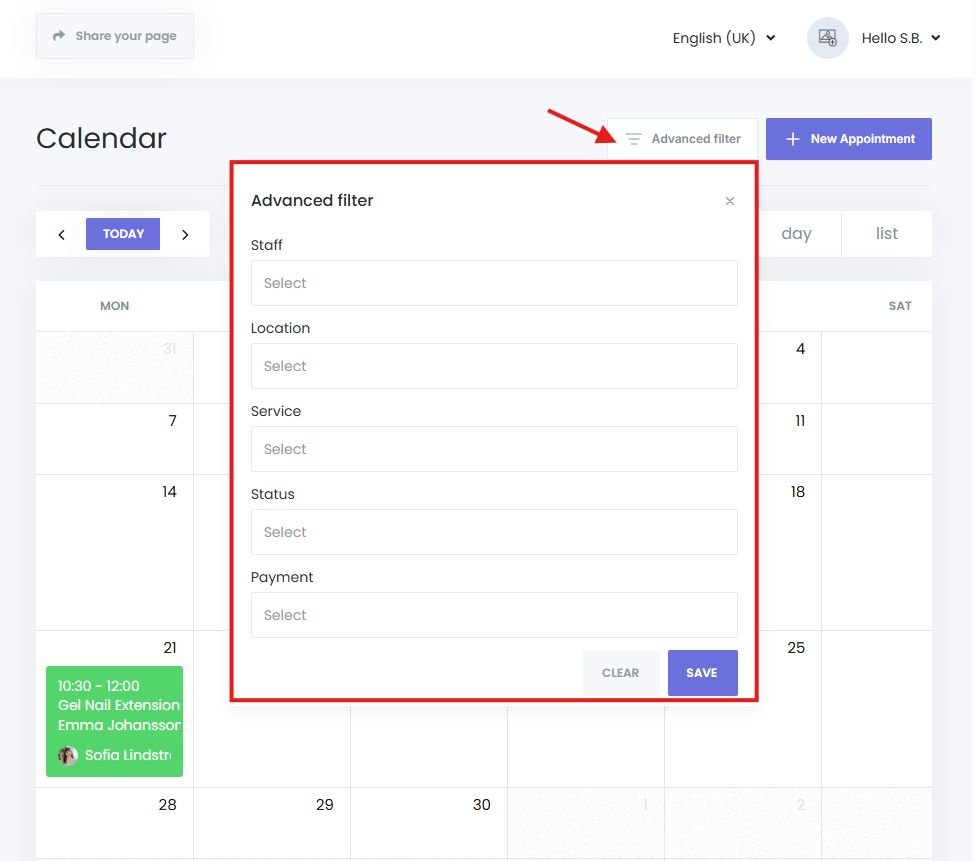
Easily locate specific bookings using built-in filters and the global search.
Filter Options
- By Location – Filter appointments for specific branches or service areas.
- By Service – Show only bookings for a selected service.
- By Staff – View a particular staff member’s schedule.
Search Bar
- From the appointment menu, type keywords such as customer name, email, or service to instantly locate appointments.
Google Calendar Integration in Book24Seven
Book24Seven offers two-way sync with Google Calendar to help keep all your platforms aligned and prevent double bookings.
Benefits of Calendar Sync
- Appointments created in Book24Seven show up in Google Calendar instantly.
- Changes in Google Calendar reflect in Book24Seven.
- Enables smoother team collaboration and real-time updates.
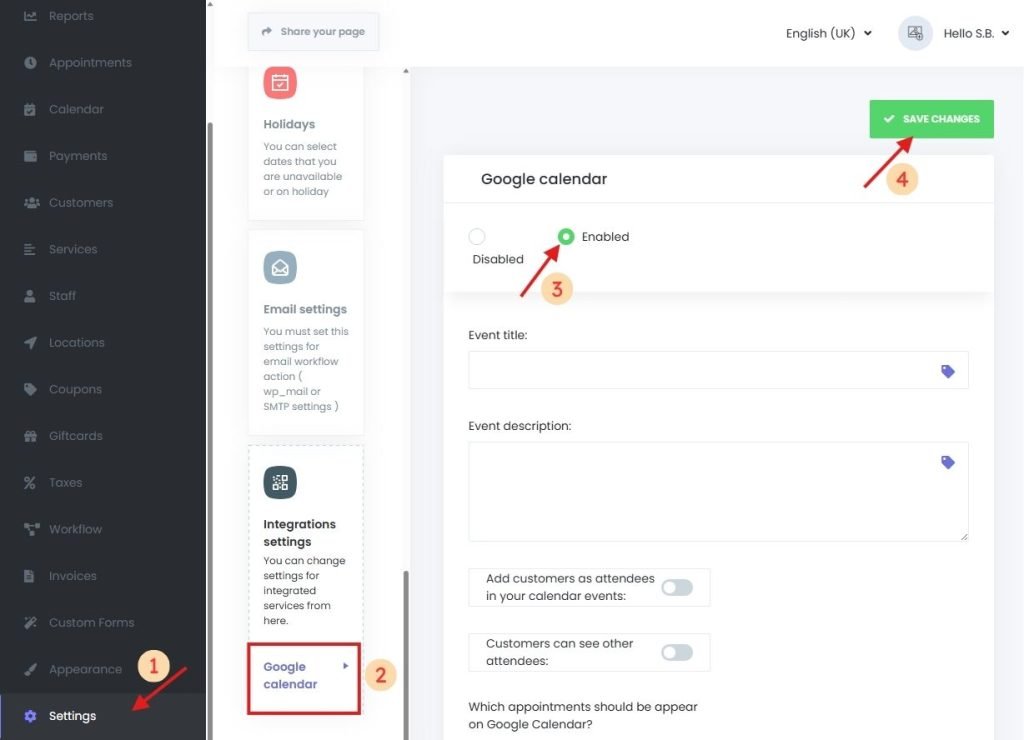
How to Enable Google Calendar Sync
- Navigate to Book24Seven > Settings > Integrations.
- Select Google Calendar.
- Log into your Google account from the Staff editing view and grant access.
- Set up sync preferences (one-way or two-way, include notes, etc.).
- Save your settings and confirm the connection.
Key Takeaways from the Calendar Module
The Calendar Module in Book24Seven makes managing appointments effortless. You can visualize bookings in multiple views, update schedules in seconds, and sync seamlessly with Google Calendar to prevent double-bookings. With built-in filters and search, finding appointments takes only moments.
By using this calendar module in an online booking system, you’ll gain full visibility, real-time updates, and complete control over your daily operations.

 English
  Finnish