
If you need to manage notifications and reminders in an online booking system, Book24Seven makes it simple to automate customer communication. You can send confirmation messages, appointment reminders, and follow-ups to keep both customers and staff informed—reducing missed bookings and improving your service reliability.
Why Appointment Notifications and Reminders Matter
| Reason | Impact |
|---|---|
| Clients forget appointments | A simple reminder can reduce no-shows by up to 90% |
| Saves your time | Fewer missed bookings means a more productive calendar |
| Improves communication | Clients can reschedule or cancel in advance via the reminder link |
| Enhances customer satisfaction | Shows professionalism and improves reliability |
| Reminds staff too | Keeps your team aligned and aware of their schedule |
Common Use Cases for Notifications and Reminders
- Pre-appointment reminders – Notify clients minutes or hours before their session
- Post-appointment follow-ups – Send thank-you emails or collect feedback
- Staff alerts – Notify team members about upcoming appointments
How to Set Up Notification and Reminder Management in Book24Seven
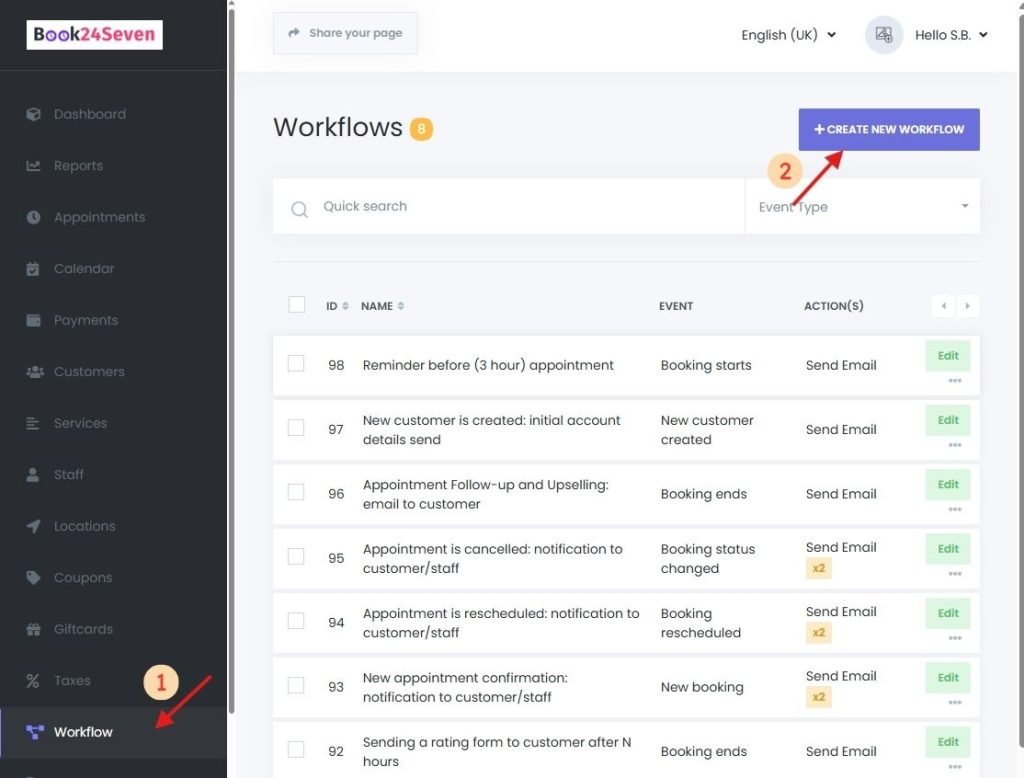
Reminders are created using the Workflows Menu in Book24Seven.
Example: Send an Email Reminder 10 Minutes Before the Appointment
Step-by-Step:
- Go to Book24Seven > Workflows.
- Click “Create new workflow”.
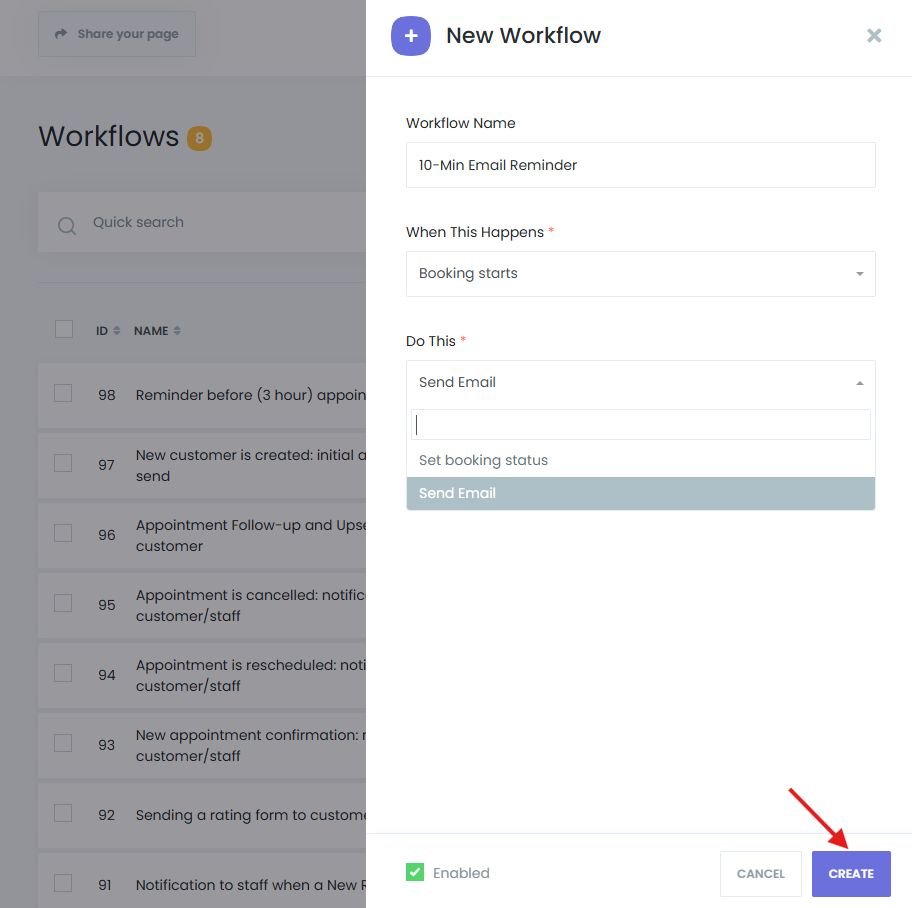
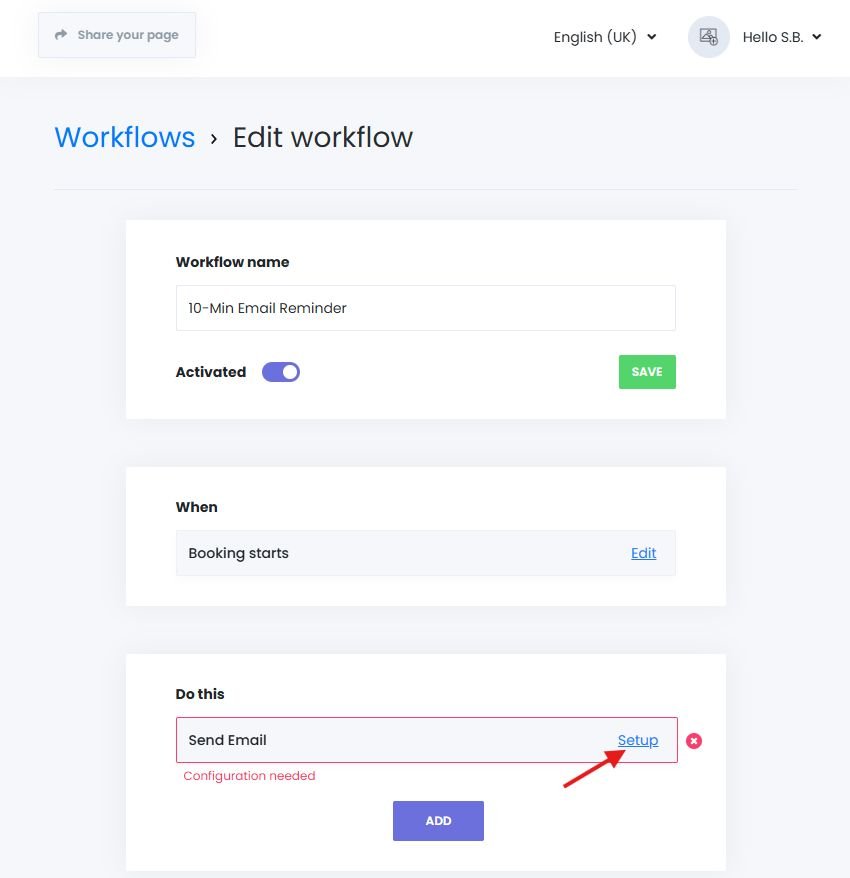
- Name your workflow (e.g., “10-Min Email Reminder”).
- Select the trigger: Booking Starts.
- Choose the action: Send Email (or SMS, if preferred).
- Click Create.
Configuring Trigger Timing for Notifications
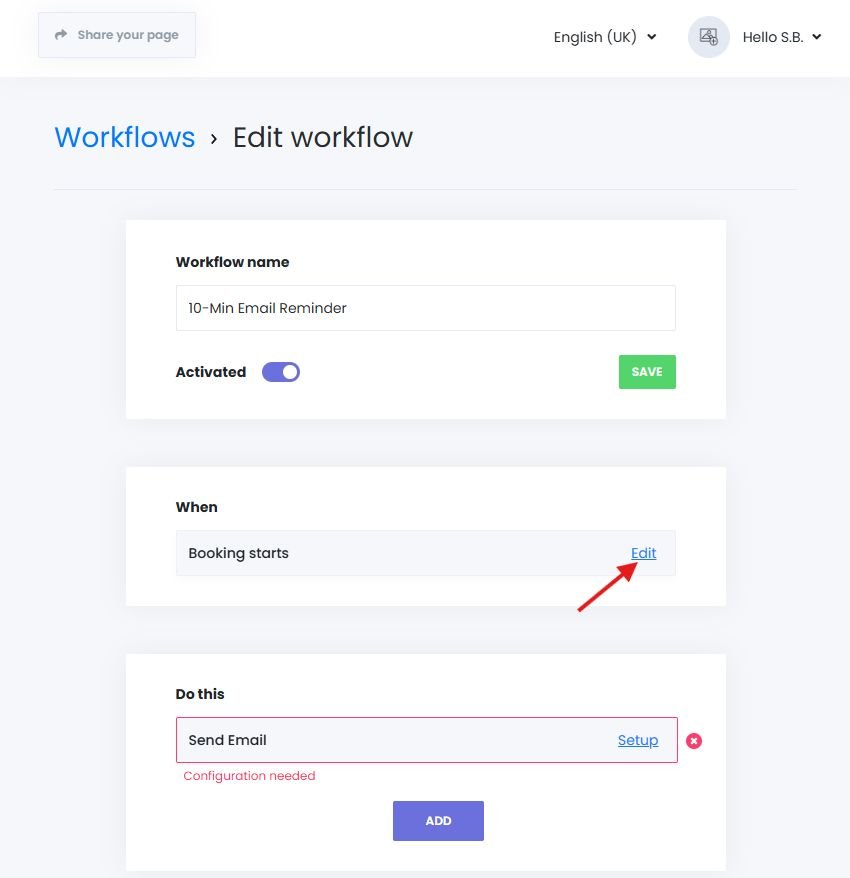
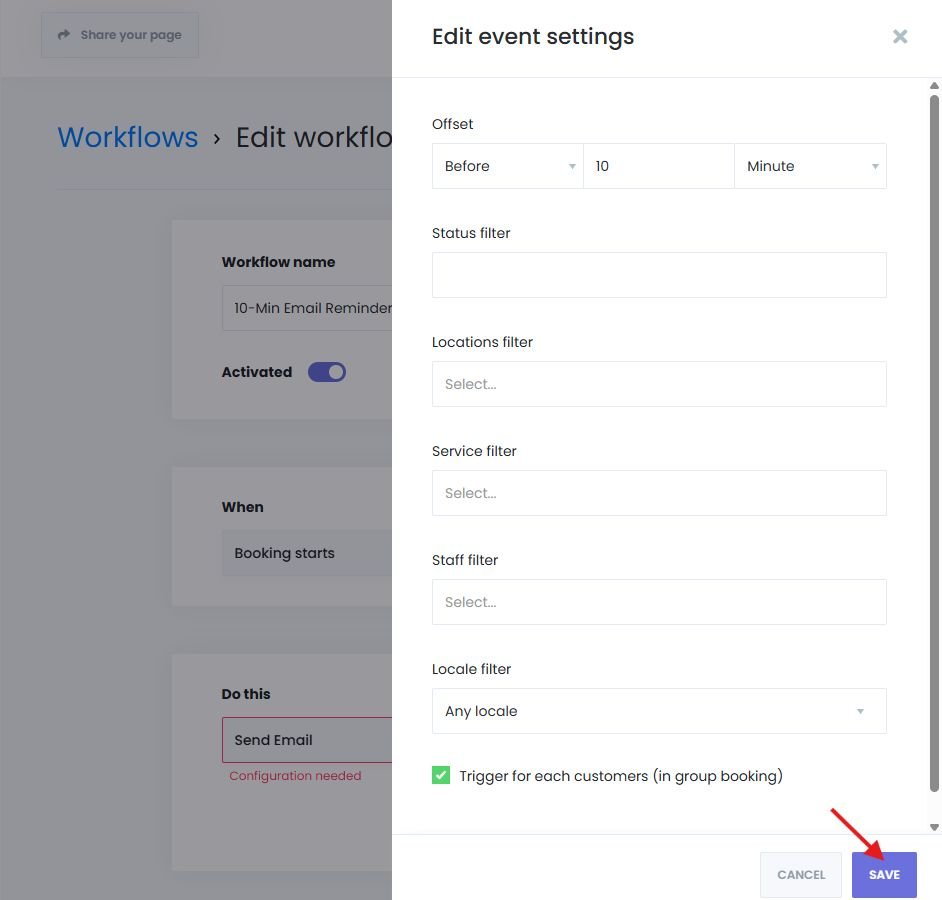
- Inside the workflow, edit the Booking Starts trigger.
- Set 10 minutes BEFORE the appointment.
- You can also choose AFTER the booking starts for post-check-in alerts.
- Filters are available:
Creating and Customizing Reminder Notifications
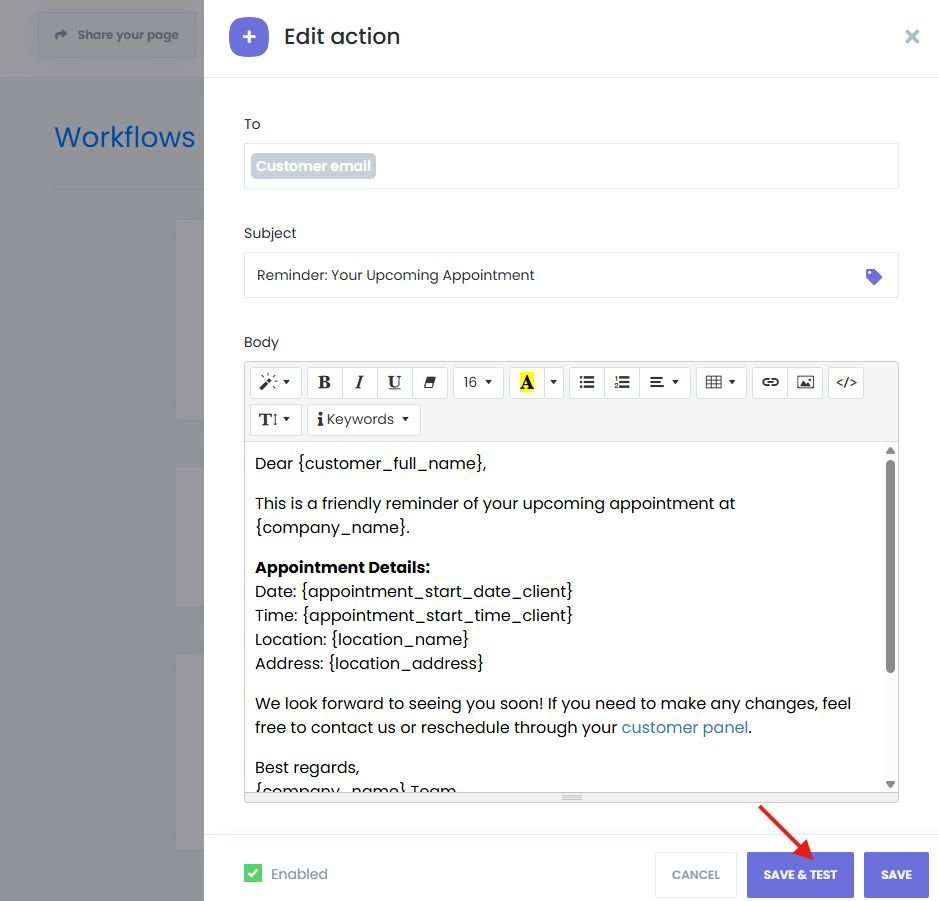
- Go to the Action tab of the workflow.
- Customize the email or SMS message:
- Use dynamic keywords like
{customer_name},{appointment_time}, etc. - Include rescheduling links or business contact info
- Use dynamic keywords like
- Click Save & Test to preview the email (note: test mode won’t convert dynamic keywords)
Setting Post-Appointment (Follow-up) Reminders
Want to follow up after the booking ends?
- Use “Booking Ends” as the workflow trigger.
- Set timing to AFTER (e.g., 15 minutes later).
- Send:
- Feedback requests
- “Thank You” messages
- Rating & Review prompts (if using the Reviews add-on)
Notify Both Customers and Staff Automatically
Book24Seven reminder workflows can send notifications to:
- The customer
- The assigned staff member
- Custom recipients (admin, front desk, team leads)
This ensures everyone stays informed and ready—reducing scheduling friction and confusion.
Summary: Automate Appointment Notifications for Better Client Experience
With Book24Seven’s notification and reminder management in an online booking system, you can:
- Automatically notify clients before their appointments
- Remind staff of their upcoming schedules
- Send follow-ups after appointments to strengthen client relationships
- Customize message timing, delivery method, and recipient
- Prevent costly no-shows and keep your business running smoothly
Whether by email or SMS, automated reminders help you communicate smarter, improve reliability, and enhance your overall booking experience.

 Finnish
  English